22.6 Problem Set 4 — High dynamic range⧉
22.6.1 Summary⧉
- merge N bracketed images into an HDR image
- tone mapping with Gaussian and Bilateral blurs
Important. To merge images to HDR, we will work with images encoded linearly. Most of the digital images you may encounter are encoded with a gamma of $2.2$ (in particular those of the handout). Therefore, in this problem set, you will have to undo the gamma $2.2$ from your inputs before merging them to HDR. You will also have to apply a gamma $2.2$ to the images you output in the linear domain (e.g. after tone-mapping). You can use the gamma_code function from problem set 1 that can be found in basicImageManipulation.cpp to do this. We assume all the inputs and outputs of the functions in this problem set are in the linear space (i.e. you will need to undo the gamma before you call the function and you will need to apply gamma after you tone map).
In the whole assignment, we will only work with images of static subjects and the camera hasn't moved between shots in the same sequence.
22.6.2 HDR merging⧉
Consult the course slides for the overall HDR merging approach. We will first compute weights for each pixel and each channel to eliminate values that are too high or too low. We will then compute the scale factor between the values of two images, to determine their relative exposures.
Finally, we will merge a sequence of images using a weighted combination of the individual images leveraging the weights and scale factors. The slide "Assembling HDR" in lecture 6 might be helpful here.
1.
- Weights. Write a function
Image computeWeight( const Image &im, float epsilonMini=0.002, float epsilonMaxi=0.99)that returns an image with pixel value 1.0 when the corresponding pixel value ofimis betweenepsilonMiniandepsilonMaxi, and 0.0 otherwise. The weights are computed on a per pixel and per channel basis.- Factor. Now that we know which pixels are usable, we can compute the multiplication factor between a pair of images. Write a function
float computeFactorthat takes two images and their weights computed using the above method, and returns a single scalar corresponding to the median value over all pixels and channels ofim2/im1for pixels that are usable in bothim1andim2. Add an epsilon of $10^{-10}$ to the pixels of im1 to avoid divide by 0 errors.
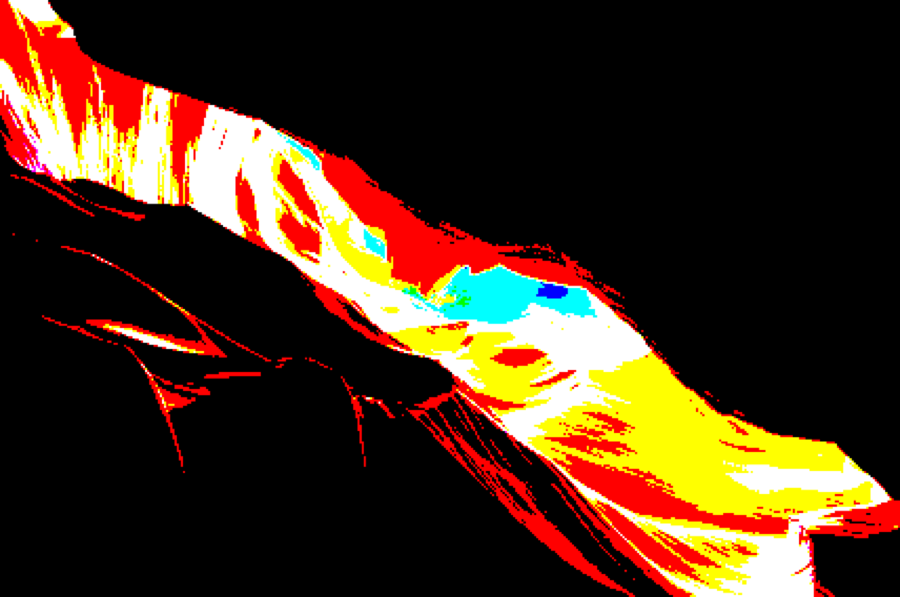
ante2 image sequence using the default parameters provided in computeWeight. You can see this output after running testComputeFactor. (a) w1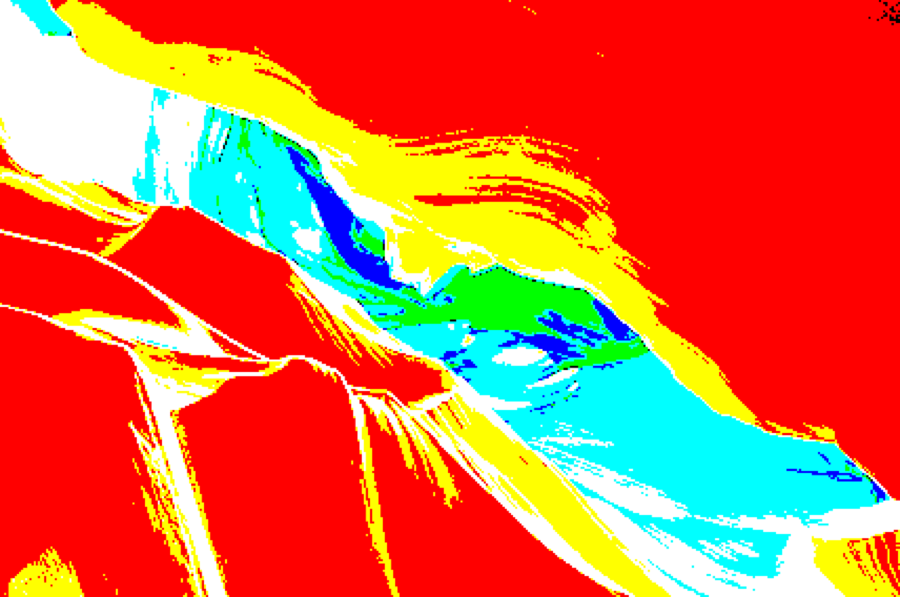
ante2 image sequence using the default parameters provided in computeWeight. You can see this output after running testComputeFactor. (b) w2With these two methods, we know which pixels are usable in each image and what the relative exposures between the images is. With this information we are ready to merge a sequence of images to a single HDR image.
For the rest of the problem, you can assume that the first image in the sequence is the darkest, and that images are given in order of increasing exposure.
For each image in the given sequence, you need to compute its multiplicative scale factor ($k_i$ in the equation on the "Assembling HDR" slide from lecture 6). This requires computing the scale factor between adjacent images in the sequence using computeFactor, then chaining them together. For example, if you have the factor between image 3 and image 2 and image 2 and image 1, you can compute the factor between image 3 and image 1 by chaining the factors together:
You should should pick one of the images as the 'reference' image (e.g. the darkest image), and compute the factors with respect to it. This means that each image's $k_i$ value will be relative to your 'reference' image i.e. you will compute it only up to a global scale factor.
Do not forget to handle the special case of pixels underexposed (or overexposed) in all images, see slide "Special Cases" in lecture 6. That is, when computing the weight of the darkest and brightest images, you should only threshold in one direction for these cases. If a pixel is not assigned to any of the weight images, then assign it the corresponding value from the first image in the sequence (by doing this you should avoid any divide by 0 errors as well). As you merge pixels do not forget to scale them with the factors computed above.
To test your method, you can write out the output image scaled by different scaling values. testMakeHDR in a4_main.cpp illustrates the process for the design image sequence.
- Merge to HDR Write a function
Image makeHDR(const vector<Image> imageList, float epsilonMini=0.002, float epsilonMaxi=0.99)that takes a sequence of images as input and returns a single HDR image.
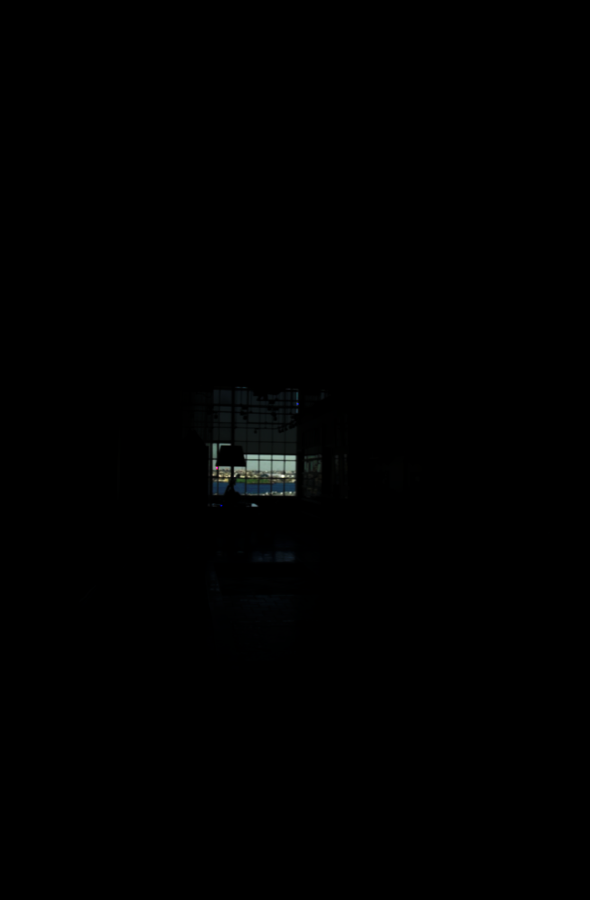
design image sequence clipped to different ranges. You can see this output after running testMakeHDR. (a) 1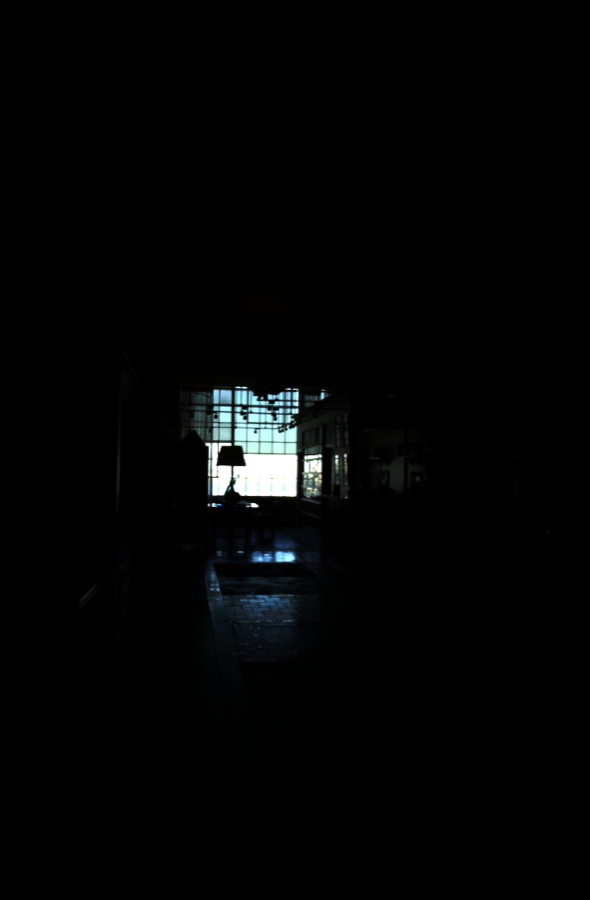
design image sequence clipped to different ranges. (b) 2e2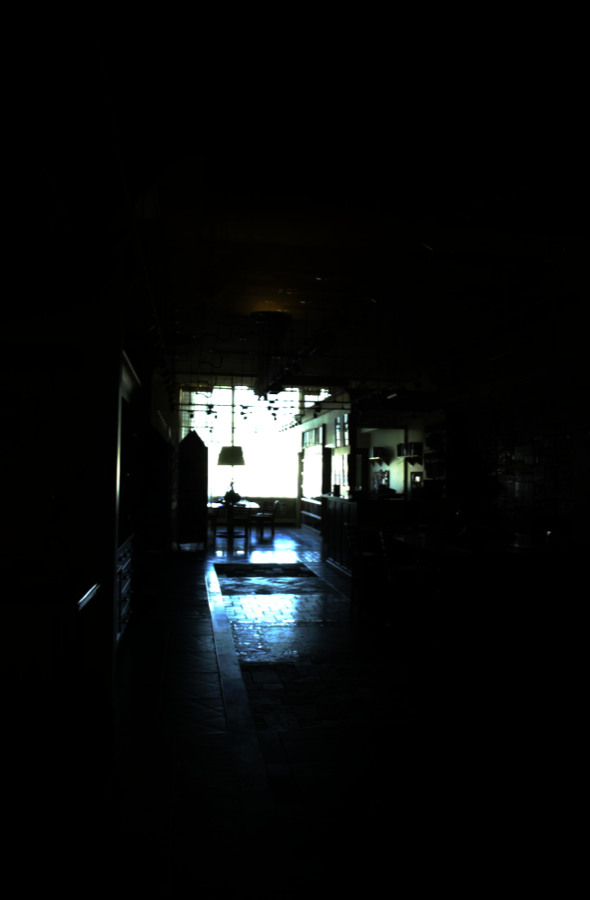
design image sequence clipped to different ranges. (c) 2e4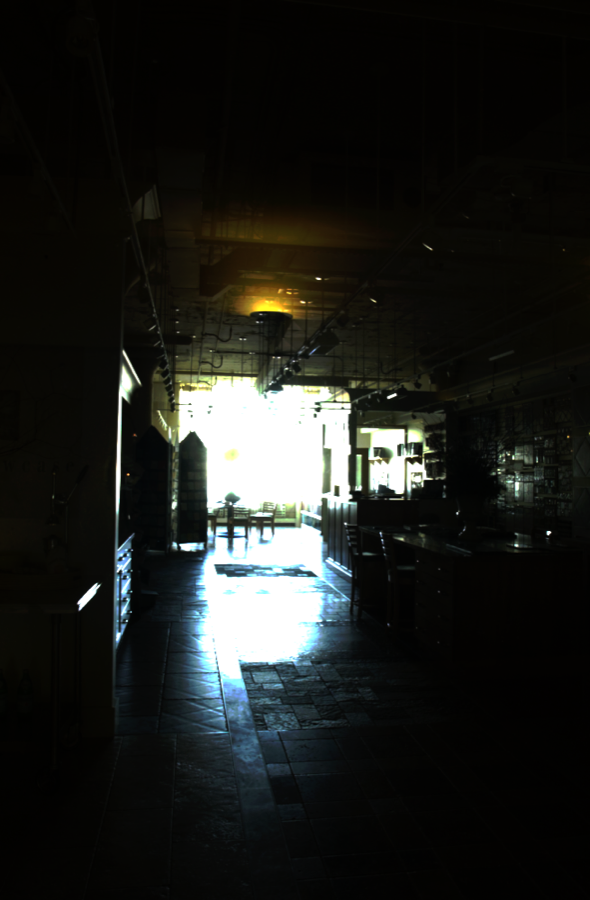
design image sequence clipped to different ranges. (d) 2e6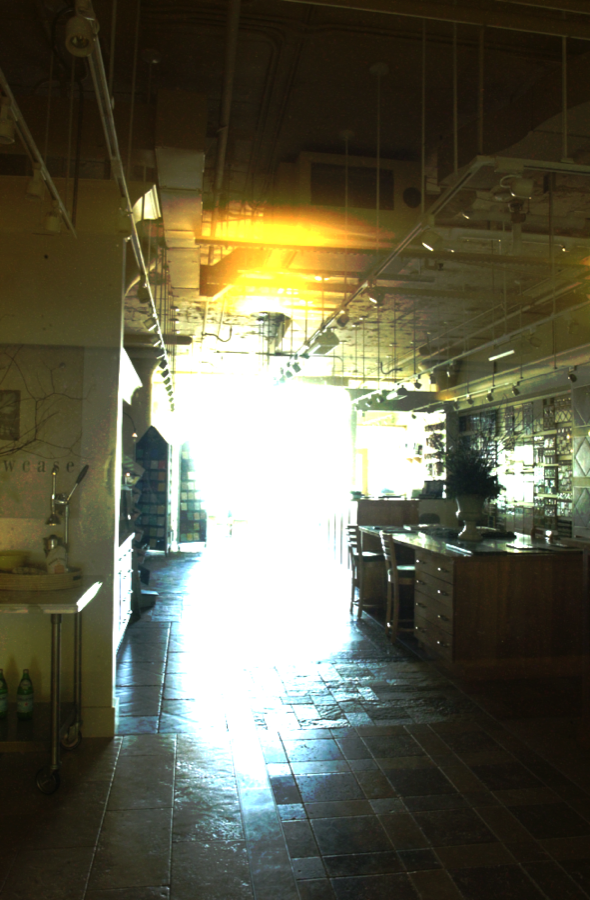
design image sequence clipped to different ranges. (e) 2e8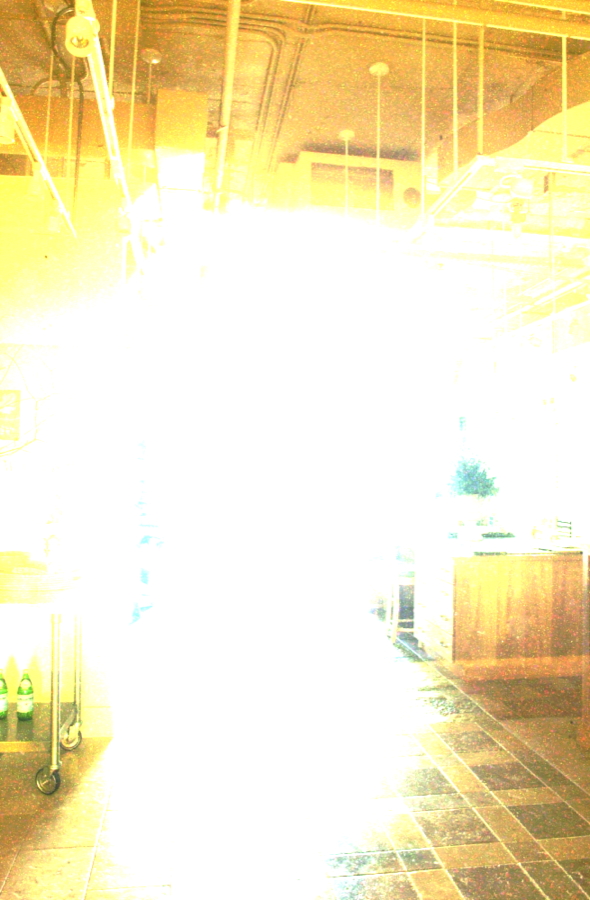
design image sequence clipped to different ranges. (f) 2e1022.6.3 Tone mapping⧉
We have assembled our first HDR image, but this image still cannot be displayed properly on our low dynamic range screen. Let's implement tone mapping to remap the HDR information to a displayable range. Make sure you understand the slides "Contrast reduction in log domain" in order to combine the base luminance, detail and brightness scaling factor.
Your tone mapper will follow the method studied in class. The function is called toneMap. It takes as input an HDR image, a target contrast for the base (lowpass) layer, an amplification factor for the detail, and a Boolean to switch the lowpass/highpass separation between the bilateral filter or Gaussian blur.
As described in the lecture, our goal is to reduce the contrast from the HDR image (say, 1:10000) to what the display can show (say 1:100). Although gamma correction might seem like the first thing to consider, this results in washed out images, as shown on the gamma compression slide in lecture 7. The colors are actually okay (they're all there) but the high frequencies are washed out. We therefore want to work on the luminance, and increase the high frequencies. We also want to work in the log-domain since the human eye is sensitive to multiplicative contrast (recall lecture 1).
We want to modify only on the log-luminance:
1.
- In the function
toneMap, first decompose your image into luminance and chrominance using the function from problem set 1std::vector<Image> lumiChromi(const Image &im)that can be found inbasicImageManipulation.cpp. We also provide you the reciprocal functionlumiChromi2rgb.- Next, compute a log10 version of the luminance. Add a small constant (e.g. the minimum non-zero value) to the luminance to avoid divergence at 0.
We recommend you do this by first implementing the helper function
float image_minnonzero(const Image &im), followed byImage log10Image(const Image &im), for which we have written function signatures and comments for you. Then, calllog10Imagewith the luminance image as the argument.
Next, we want to extract the detail of the (log) luminance channel. We do this by blurring the log luminance, and subtracting this from the original log luminance. If you recall problem set 2, this gives you the details (high frequencies).
- You are ready to compute the base (blurry) luminance. We will implement two versions: Gaussian blur and bilateral filtering, which will be chosen based on the value of the input parameter
useBila. In both cases, we will use a standard deviation for the spatial Gaussian equal to the biggest dimension of the image divided by 50. The parametertruncateDomainshould be set to the default value of 3.You are welcome to use your own implementation of filtering methods, but you can also use our versions in
filtering.cpp.
- Given the base, compute the detail by taking the difference from the original log luminance.
- What differences do you expect to see in your tone mapping results when using a bilateral filter compared with a Gaussian filter and why? Answer in the submission form. (hint: the slides might help).
At this point we have a detail image and a base image. Our goal is to reduce the contrast on the base image while also preserving (or even amplifying) the details. The slides "Contrast Reduction in log domain" might be helpful here.
- Compute the scale factor
kin the log domain that brings the dynamic range of the base layer to the given target (that is, the range in the log domain should belog10(targetBase)after applyingk). Scale the base image by the factorkto reduce the contrast, and multiply the details (in the log domain) bydetailAmp. Next, add the scaled base and amplified detail to obtain your new log luminance.Make sure to add an offset that ensures that the largest base value will be mapped to 1 once the image is put back into the linear domain
We have provided two new functions for you that you might find useful:
float Image::min() constandfloat Image::max() constto get the minimum (respectively maximum) value of an image.
- Convert this new luminance back to the linear domain (you may want to separately implement
Image exp10Image(const Image &im)). Then, reintegrate the chrominance into the resulting image. We've provided the functionImage lumiChromi2rgb(const vector<Image> & lumiChromi)inbasicImageManipulation.cppwhich might be helpful.
Enjoy your results and compare the bilateral version with the Gaussian one. Use the functions testToneMapping_ante2, testToneMapping_ante3, testToneMapping_design, testToneMapping_boston in a4_main.cpp to help test your tone mapping function. Feel free to try them on your own images!
Note: The bilateral filter on the design image sequence takes a very long time. It is not necessary to test bilateral filter tone mapping for this image sequence. If you do test it, you likely won't get exactly the same image as given in the slides because it was generated with different parameters.
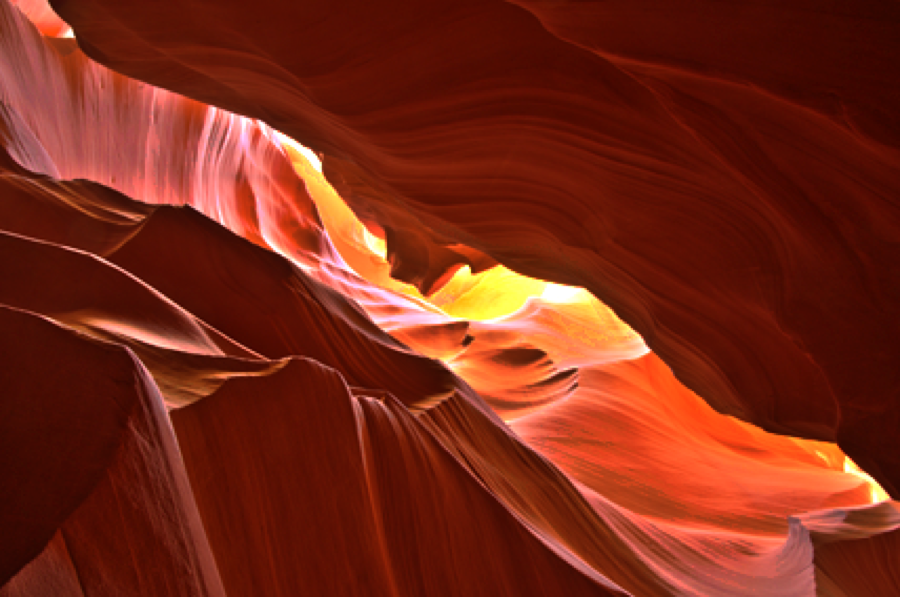
ante2 image sequence using the parameters provided in testToneMapping_ante2. (a) Gaussian Tone Mapping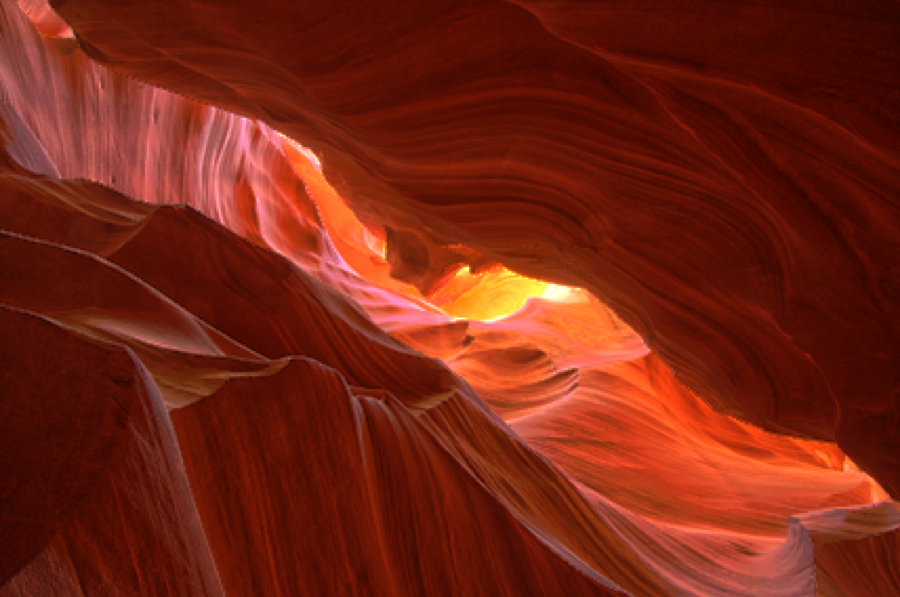
ante2 image sequence using the parameters provided in testToneMapping_ante2. (b) Bilateral Tone Mapping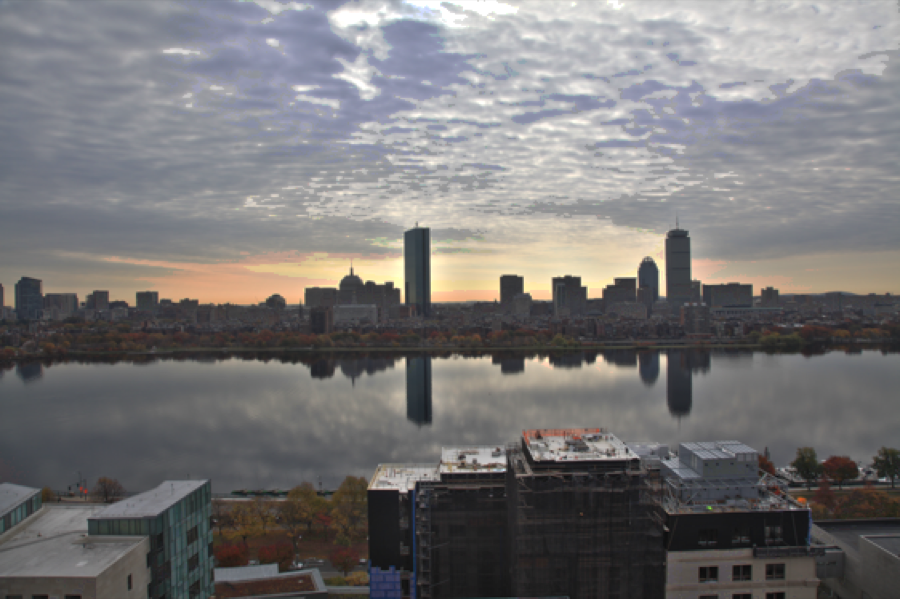
boston image sequence using the parameters provided in testToneMapping_boston. (a) Gaussian Tone Mapping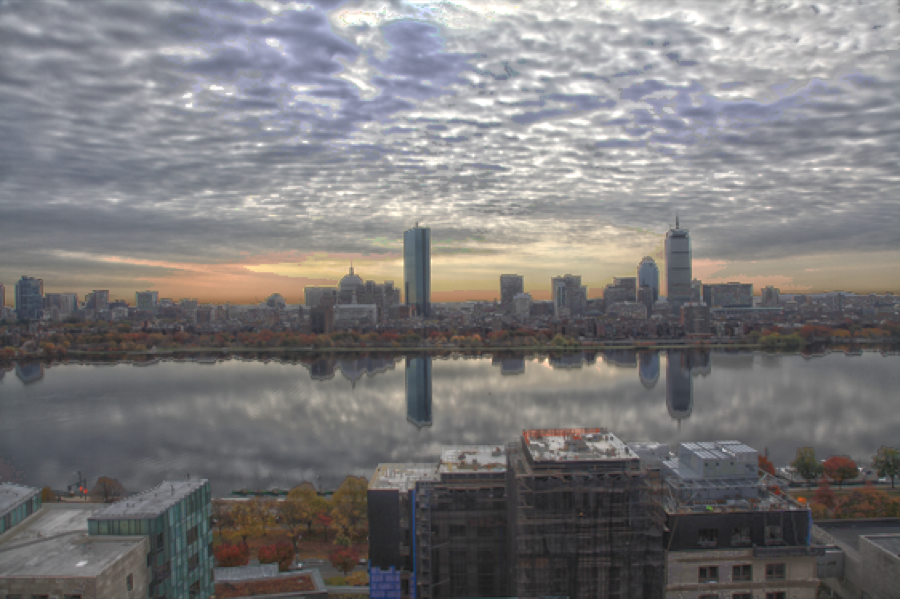
boston image sequence using the parameters provided in testToneMapping_boston. (b) Bilateral Tone Mapping22.6.4 Extra credit (10% max)⧉
- (5%) Deal with image alignment (e.g. the
seaimages). We recommend Ward's median method <http://www.anyhere.com/gward/papers/jgtpap2.pdf> but probably single-scale to make life easier yet slower. Alternatively, you can simulate the clipping in the darker of two images. - (5%) Derive better weights by taking noise into account. You can focus on photon noise alone. This should give you an estimate of standard deviation (or something proportional to the standard deviation) for each pixel value in each image. Use a formula for the optimal combination as a function of variance to derive your weights. This should replace the thresholding for dark pixels, but you still need to set the weight to zero for pixels dangerously close to 1.0.
- (5%) Write a function to calibrate the response curve of a camera. See <http://www.pauldebevec.com/Research/HDR/>
- (10%) Implement the bilateral grid for fast bilateral filtering. See <http://groups.csail.mit.edu/graphics/bilagrid/> with more mathematical justifications at <http://people.csail.mit.edu/sparis/publi/2009/ijcv/Paris_09_Fast_Approximation.pdf>
- (10%) Hard: deal with moving objects