3.14 File formats and compression⧉
For two chapters you have pictured an image as a tidy grid of floating-point numbers in [0, 1]. That picture is true inside your program, but it is a fiction the instant the image touches a disk. The moment you save a result, or open a file a camera handed you, those clean numbers meet the world of files — and a file is never just the pixels. It is the pixels in some particular encoding, wrapped in metadata, and very often compressed, sometimes in ways that quietly discard pixels you can never get back. Why should you care, when what you really want is to write image-processing code? Because the file boundary is where a startling fraction of bugs are born: an image that loads sideways, a "white" that is secretly gamma-encoded, an alpha channel nobody asked for, a JPEG whose blocky seams your sharpening filter then faithfully amplifies. This chapter is about that boundary — how images are stored, what is thrown away to make them small, and which format to reach for when.
One idea organizes the whole chapter: compression, the art of making the file smaller. And the central lesson — worth stating up front because everything builds toward it — is that the best compression is perceptual. It does not merely exploit patterns in the data; it leans on the very facts about human vision we assembled in the Spatial vision and opponent-color chapters. JPEG, the format you have seen ten thousand times, is essentially those perception chapters recast as a file format. That makes JPEG a beautiful object lesson in a claim that sounds soft until you see it made concrete: perceptual criteria can be made quantitative and objective. "What the eye will not miss" stops being a hand-wave and becomes a specific table of numbers you can compute, tune, and measure. So while we will tour many formats, the bulk of our attention goes to JPEG, because understanding why it works is understanding how vision and engineering meet.
3.14.1 The big picture: none, lossless, lossy⧉
Storing an image costs bits, and there are exactly three philosophies about how to spend them.
The first is to be clever about nothing at all: write the pixels out as-is, one number after another, and read them back the same way. This is uncompressed storage — a plain dump of the array. It is simple, exact, and fast, but it is large: a 12-megapixel photo at 8 bits per channel is roughly 36 megabytes, and a folder of them fills a disk in a hurry. This is what a memory-resident image, or a no-frills format, amounts to.
The second philosophy is lossless compression: shrink the file, but promise that what comes back out is bit-for-bit identical to what went in. This is possible because real images are not random noise. Neighbouring pixels tend to be similar, large regions are nearly constant, edges repeat — and that statistical redundancy can be squeezed out and then perfectly restored, the way a ZIP archive shrinks text without losing a character. PNG and (usually) TIFF live here. Lossless is the right call when every pixel is sacred: a mask, a depth map, scientific data, or an image you will edit and re-save many times.
The third philosophy is lossy compression: permit the decoded image to differ from the original, in exchange for a dramatically smaller file. The trick — and it is a lovely one — is to discard only information the eye will not miss. JPEG, the high-efficiency image format (HEIC), WebP, and the AOMedia Video 1 (AV1) image file format (AVIF) all live here. Lossy is the right call for photographs you want to share or store by the thousand, where a difference nobody can perceive is, for all practical purposes, no difference at all.
The dividing line between the last two is the heart of the matter, so state it plainly: lossless exploits redundancy; lossy also exploits perception. Redundancy is a property of the data — repeated or predictable values you can restore exactly. Perceptual irrelevance is a property of the viewer — detail the visual system cannot resolve, so dropping it changes the numbers but not the experience. Everything interesting about JPEG follows from taking that second idea seriously.
3.14.2 Data versus metadata: EXIF⧉
A photo file carries two very different kinds of information. There are the pixels — the image data — and there is metadata: data about the image that is not part of the grid of colors. The dominant metadata standard for photographs is the exchangeable image file format (EXIF), a block of tagged fields cameras write alongside the pixels.
Some of it is the bookkeeping you would expect: width and height, channel count, the camera make and model, a timestamp, the file's name. Much more of it records how the photo was taken — the capture settings: ISO, shutter speed, aperture, focal length, lens, whether the flash fired. For a computational photographer this is gold, because it reports the physical conditions of the shot, and later chapters on exposure and noise read these fields directly. Many cameras and phones also write Global Positioning System (GPS) coordinates — handy for organizing a library, and a real privacy concern when you post a file without thinking. (One caution carries over from Image representation: EXIF coverage is incomplete and inconsistent across makers, and some values — notably ISO and shutter speed — are approximate and not radiometrically calibrated, so do not treat them as exact measurements.)
Two fields earn special mention because they cause genuine bugs. The first is the orientation flag. Rather than physically rotating the pixels when you turn the camera sideways, most cameras store the pixels in sensor order and set a flag that says "display this rotated 90°." A viewer that honours the flag shows the photo upright; code that ignores it — and naive image-loading code usually does — gets the image sideways. This is the infamous "why is my photo rotated?" bug, and the cure is simply to read the orientation tag and rotate the pixels yourself before any processing. The second is the embedded International Color Consortium (ICC) color profile, which records what the pixel values mean as color — which primaries, which white point, which gamma. We met the principle that a bare array of numbers is meaningless without its encoding back in Image representation; the ICC profile is precisely how a file carries that encoding along, and profiles get their full treatment in color management. Strip the profile and you are guessing at the colors; honour it and the same file looks right everywhere.
Because every frame is stamped with a time, a place, and the settings of the moment, a photo library is also a quietly detailed diary. Sort years of phone photos by EXIF date and you can watch your kids grow up frame by frame, or rediscover exactly where you stood and which lens you used on a trip a decade ago. The same metadata that makes this delightful is why you should think before posting a file straight off the camera: the GPS tag may pinpoint your home. The full catalogue of typical fields lives in the appendix → Common EXIF fields; tools like exiftool let you read — and strip — all of it.
3.14.3 PNG: the format we read from⧉
For the code in this book we save and load images as PNG (Portable Network Graphics). The reason is pragmatic rather than principled: PNG is lossless, so what we write is exactly what we read back, and it is easy to read — the decoder is simple, ships everywhere, and carries none of the licensing baggage that historically came with JPEG. We pay for that simplicity with somewhat larger files and slightly slower decoding than a lossy format, which is a fine trade for a teaching pipeline where we want to trust our pixels.
PNG compresses with the same general idea as a ZIP archive — predict each pixel from its neighbours, then losslessly pack the small prediction errors — which works well on the smooth gradients and flat regions of synthetic images and screenshots, and acceptably on photographs. It supports an alpha channel, and that is the one gotcha to flag now. Load a PNG expecting three channels and you may get four, because the file carried transparency; if your code assumes RGB, every channel downstream shifts by one and the result is nonsense. We met this trap in Image representation and will treat alpha properly in Compositing; for now, simply check the channel count when you load, and when you want a plain RGB image, save and load PNGs without an alpha channel.
In practice you never touch the PNG bitstream yourself; a library does it in one call.
import imageio.v3 as iio
img = iio.imread("input.png")      # an (H, W, 3) — or (H, W, 4)! — array
iio.imwrite("output.png", img)
The whole point of a standard format is that this line just works. Mind the dtype the library hands back (usually 8-bit uint8 in [0, 255], which we convert to float [0, 1]) and the channel count.
3.14.4 JPEG: compression by perception⧉
Now the heart of the chapter. JPEG — named for the Joint Photographic Experts Group that standardized it, with Wallace's 1991 overview the canonical description — is the format that made digital photography practical, and it is a near-perfect case study in our central theme: spend bits where the eye looks, save them where it does not. Every stage of JPEG is a bet about human vision. Read it that way and JPEG becomes the cleanest argument in the book that perception can be turned into numbers: each perceptual fact ends up as a concrete operation — a color transform, a sampling ratio, a quantization table — that you can compute, dial up or down, and measure against a file size. We will walk the whole pipeline (Figure 3.14.1), and at each stage explain why it works, not merely what it does.
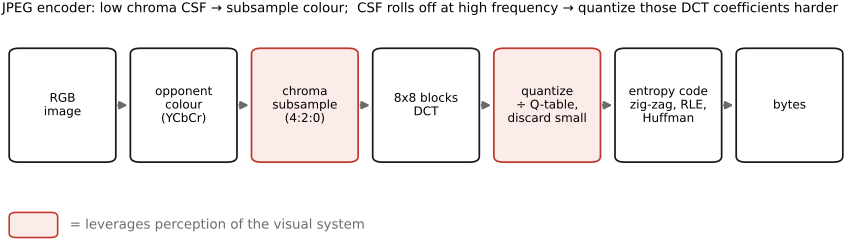
Y from two chroma channels Cb, Cr. (2) Chroma subsampling: shrink Cb and Cr to half resolution (4:2:0), exploiting the eye's low color acuity. (3) Block DCT: split each channel into 8×8 blocks and transform each to spatial-frequency coefficients. (4) Quantization: divide the coefficients by a quality-dependent table that crushes high frequencies hardest — this is the only lossy step. (5) Entropy coding: losslessly pack the (mostly zero) quantized coefficients in a smart order. Decoding runs the same chain in reverse.The starting observation, lifted straight from the Spatial vision chapter, is that human vision is not uniform. The contrast sensitivity function (CSF) tells us our sensitivity to detail falls off at high spatial frequencies — we simply cannot resolve fine texture as well as coarse structure. And our sensitivity to color detail is far lower still than our sensitivity to brightness detail: the eye has sharp acuity for luminance and surprisingly coarse acuity for hue. JPEG's entire strategy is to match the number of bits to what the eye can actually use — many bits for the brightness structure we see keenly, few for the color detail and the high frequencies we barely register. The five stages below are just the bookkeeping that cashes this in.
Stage 1: opponent color⧉
JPEG's first move is to stop thinking in red, green, blue. RGB tangles brightness and color together — nudge any one channel and both lightness and hue shift — which is exactly the wrong representation if you intend to treat brightness and color differently. So JPEG converts to an opponent color space, YCbCr: a single luma channel Y carrying brightness, and two chroma channels Cb and Cr carrying the blue–yellow and red–green color differences. This is the same opponent recoding the human visual system itself performs, which we studied in opponent color — it is no accident that the format mirrors the retina. The transform is a fixed $3\times3$ linear map, perfectly invertible, and by itself loses nothing. Its purpose is preparation: once luma and chroma are separated, JPEG can spend bits on each according to how well we see it.
Stage 2: chroma subsampling⧉
With color now isolated in Cb and Cr, JPEG plays its first lossy card — and perceptually it is nearly free. Because our acuity for color detail is so low, JPEG simply throws away half or three-quarters of the color resolution: it shrinks the two chroma channels while keeping luma at full resolution. This is chroma subsampling, written in a J:a:b notation that counts how many chroma samples survive in a $4\times2$ block of pixels (Figure 3.14.3). 4:4:4 keeps full color resolution (no subsampling at all). 4:2:2 halves the horizontal color resolution. 4:2:0, the usual JPEG choice, halves it in both directions — one color sample for every $2\times2$ block of luma, a 75% cut in color data — and you are very unlikely to see the difference.
Why does this work so well, and why only on chroma? Recall the dramatic demonstration from the Spatial vision chapter: convert an image to an opponent space, blur the chroma channels hard, and it still looks sharp; blur the luma instead and the picture falls apart. Subsampling chroma is exactly that controlled blur, applied for free at the file level. Try the same trick on luma and you would smear every edge — which is precisely why JPEG never touches luma resolution.
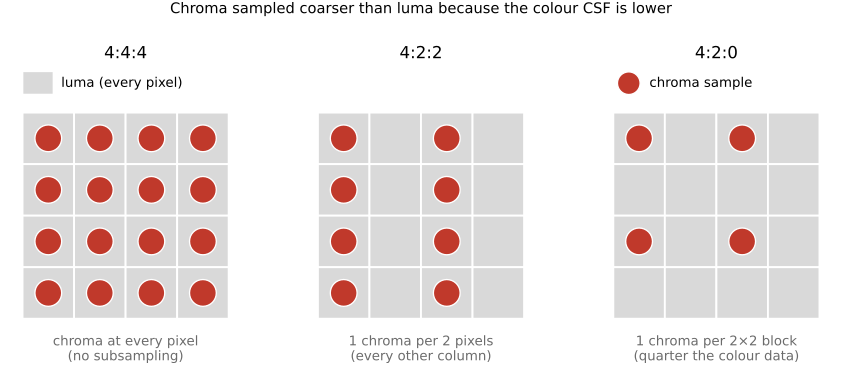
Cb and Cr — full color resolution. 4:2:2: chroma sampled every other column — half the horizontal color resolution. 4:2:0 (JPEG's usual choice): one chroma sample per 2×2 block — color resolution halved in both directions, a 75% reduction. Luma (Y) is always kept at full resolution. Because the eye's color acuity is low, even 4:2:0 is nearly invisible — try the same on luma and edges smear.That the loss is nearly free is not a claim to take on faith — you can see it on a real photograph (Figure 3.14.3b). Recode a vivid flower to luma and chroma, then decimate the two chroma channels hard — here one sample per $8\times8$ block, far past 4:2:0's $2\times2$ — and the picture barely changes: the full-resolution luma holds every edge crisp, and only a hair of color bleed survives at the most saturated boundary. Apply the same decimation to luma instead and the image collapses into a blur. That is the visceral proof that resolution belongs in luma, never chroma.
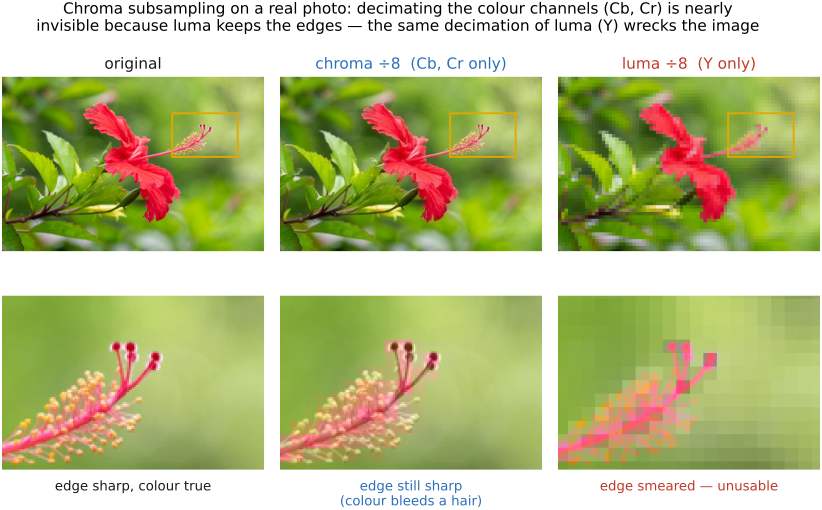
Cb, Cr) decimated by 8× (one color sample per 8×8 block, well past JPEG's 4:2:0): nearly indistinguishable, because full-resolution luma keeps the edge sharp; only a faint color bleed survives. Right — the same 8× decimation applied to luma (Y) instead: every edge smears and the image is unusable. The perceptual bet behind chroma subsampling, made visible.Stage 3: the 8×8 DCT⧉
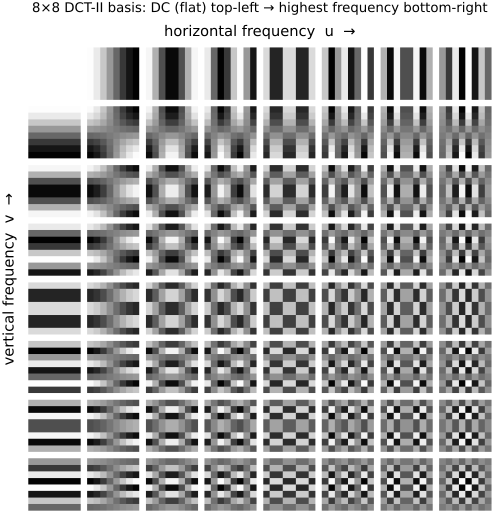
Now JPEG turns to the high-frequency half of the CSF story, and to do that it must work in terms of spatial frequency rather than raw pixels. It splits each channel into small $8\times8$ pixel blocks and transforms each block with the discrete cosine transform (DCT). The DCT is a close relative of the Fourier transform we study in the Fourier chapter: it re-expresses the 64 pixel values of a block as 64 coefficients, each the weight of a particular 2-D cosine basis pattern — from a flat constant (the block's average, the "DC" term), through gentle ramps, up to fine checkerboards at the highest frequencies (Figure 3.14.4). No information is lost yet; the DCT is just a change of representation, perfectly invertible, like rewriting the same number in a different base.
Why bother? Because frequency is exactly the axis the CSF is organized along. Once a block is expressed as frequency coefficients, JPEG can treat low and high frequencies differently — keep the coarse structure the eye sees keenly, crush the fine detail it barely registers. And there is a statistical bonus: on real photographs, most of a block's energy piles into the low-frequency coefficients (smooth regions dominate), so the high-frequency coefficients are usually small to begin with. The DCT thus concentrates the signal into a few coefficients, which is what makes the next two stages so devastatingly effective. (Why $8\times8$ and not the whole image? A small block keeps the transform cheap and lets the encoder adapt to local content — but it is also the source of JPEG's signature artifacts, as we will see.)
Stage 4: quantization — the lossy step⧉
This is where JPEG actually throws information away, and where its quality knob lives. Each of the 64 DCT coefficients is divided by a corresponding entry in a quantization table and rounded to the nearest integer. The rounding is the lossy act: once you have rounded 7.4 to 7, you cannot recover the original — that fractional detail is gone forever. The art is entirely in the quantization table — which coefficients to round coarsely and which to keep fine.
And the table is built straight from the CSF. The entries for low-frequency coefficients are small, so those coefficients are quantized finely — we preserve the coarse structure the eye sees well. The entries for high-frequency coefficients are large, so those are quantized coarsely — many round all the way to zero, discarding fine detail the eye can barely resolve anyway. After quantization, a typical block has a few non-zero coefficients huddled in its top-left corner and a sea of zeros everywhere else. That is the whole game: the table is a numerical encoding of "spend bits where the CSF is high, save them where it is low" — perception written down as a $8\times8$ grid of divisors.
The quality setting in your image editor is simply a multiplier on this table. High quality scales the table down, so less is rounded away and the file is larger and cleaner; low quality scales it up, rounding aggressively and producing a tiny, visibly degraded file. There is no separate "quality algorithm" hiding behind the slider — just a knob on how hard to quantize. Decoding cannot undo the rounding: it multiplies each quantized coefficient back by its table entry, recovering the rounded value, never the original.
Stage 5: entropy coding⧉
The final stage gives up nothing — it is purely lossless packing of the quantized coefficients, and it is where the sea of zeros pays off. JPEG reads each block's 64 coefficients in a clever zig-zag order, sweeping diagonally from the low-frequency corner toward the high, which tends to gather the long run of zeros together at the end. A run of identical zeros compresses to almost nothing (store the value once, plus a count), and the surviving values are packed with classic entropy coding (Huffman codes, which give frequent values short bit-strings). These are the same general-purpose lossless tricks behind ZIP; JPEG's real contribution is to arrange the data — opponent color, subsampling, DCT, CSF-shaped quantization — so that by the time entropy coding runs, there is gloriously little left to store. Decoding simply runs the whole chain backwards: unpack, de-quantize (multiply by the table), inverse-DCT each block, upsample the chroma, and convert YCbCr back to RGB.
Limitations and artifacts⧉
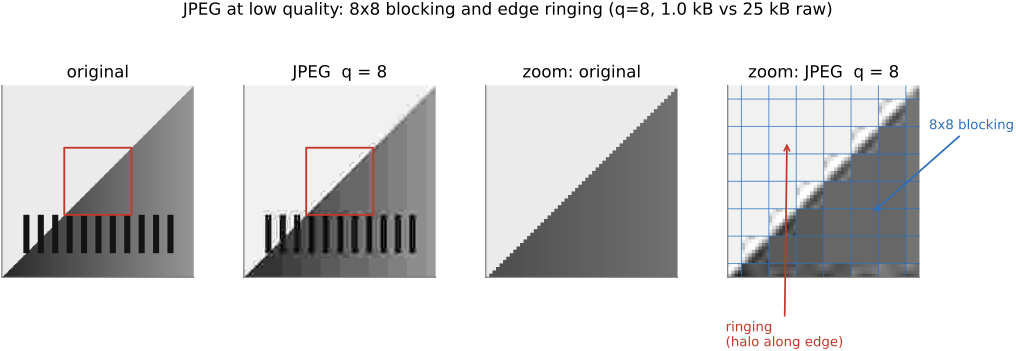
JPEG is a triumph, but be honest about its costs. Two limitations matter for the rest of the book. First, baseline JPEG is 8 bits per channel — fine for a finished photograph, but no headroom for the heavy editing or high dynamic range of later chapters, which is one reason we will reach for other formats. Second, push the quality down and the discarded information becomes visible as two characteristic artifacts (Figure 3.14.6). Blocking is the $8\times8$ grid itself surfacing: when coefficients are crushed hard, neighbouring blocks no longer agree at their shared borders and you see a quilt of seams — the direct fingerprint of processing each block in isolation. Ringing (or mosquito noise) is the spurious ripple that appears alongside sharp edges, such as text on a flat background: discard the high-frequency coefficients an edge needs and the remaining low frequencies overshoot, the same Gibbs-style oscillation you meet whenever you truncate a frequency representation. Both worsen as quality drops, and both are why re-saving a JPEG repeatedly degrades it — each round re-quantizes already-quantized data. A practical warning for image-processing code: a sharpening filter run on a low-quality JPEG will happily amplify its blocking and ringing, so always know what you are starting from.
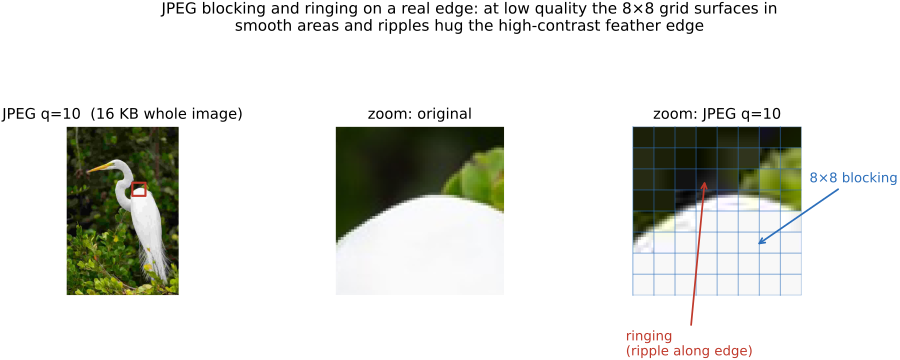
The clean test edge of Figure 3.14.6 isolates the two artifacts; Figure 3.14.6b shows them where you actually meet them — on a real photographic edge. Save a photo with a hard, high-contrast boundary (a white egret against dark foliage) at low quality, zoom in, and overlay the encoder's $8\times8$ grid: the grid surfaces as flat seams across the smooth bright region (blocking), and faint ripples cling to the high-contrast edge (ringing). These are exactly the fingerprints a careless sharpening filter will then magnify.
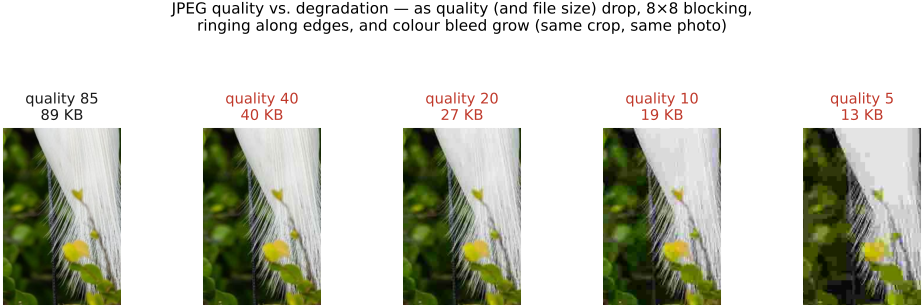
The trade-off is clearest as a sweep (Figure 3.14.7): save the same photo across a range of quality settings and watch the file size and the damage move together. The file shrinks several-fold, and the degradation marches in step — near-invisible at high quality, a softening of fine detail through the middle, then unmistakable blocking and color bleed at the bottom. This is the curve you ride every time you drag the quality slider in an export dialog, and it is the whole "perception as numbers" thesis in one picture: the same knob trades measurable bits against just-noticeable damage.
3.14.5 RAW files: before the cooking⧉
Everything so far assumed a finished, viewable image. But a camera's sensor does not produce one — it produces a grid of single-color measurements behind a color-filter mosaic, in linear light, before any of the processing that turns sensor data into a photograph. A RAW file stores that early data, capturing the scene before the camera's pipeline has committed to a white balance, a tone curve, a color rendering, or a gamma encoding. This is what serious photographers shoot, because it preserves the most information and the most freedom: you develop the RAW later, on a computer, making the very decisions the camera would otherwise bake in irreversibly.
Two properties define RAW. First, it is typically before demosaicking — the pixels are still the raw mosaic of the color-filter array (the Bayer pattern), one color per photosite, not yet interpolated into full RGB. Reconstructing full color from that mosaic is its own problem, the subject of Demosaicking; RAW hands you the input to that step. Second, RAW is linear — the values are (close to) proportional to the light the sensor collected, with no gamma curve applied, which is exactly what you want for the physically-based operations of later chapters.
Here is the subtlety, and it is worth stating plainly: "RAW" is not always purely raw. The name suggests an untouched sensor dump, but in practice most cameras pre-cook the data to some degree — subtracting the sensor's black level, correcting defective and hot pixels, sometimes applying lens-shading or vignetting correction or even mild denoising. Some "RAW" formats are themselves lossy-compressed or non-linearly encoded to save space. So RAW is best thought of as a spectrum of how cooked the data is, from a near-literal readout to something already partly processed — not a single guarantee of pristineness.
There is also a practical headache: RAW is largely proprietary. Nearly every manufacturer ships its own format and extension — Canon's (CR3 files), Nikon's (NEF files), Sony's (ARW files), and so on — each subtly different — a nightmare for software and an archival risk for you, since a format only one company supports may not be readable in thirty years. Adobe's Digital Negative (DNG) format is an open, documented, standardized RAW container meant to fix exactly this (its specification Adobe DNG specification is the reference here); many photographers convert their proprietary RAWs to DNG for safekeeping, and some cameras shoot DNG directly.
You will not parse a proprietary RAW format yourself; a library decodes the mosaic and metadata for you. The classic is dcraw, a single heroic C file that reverse-engineered dozens of formats; its maintained successor is LibRaw (C++), with a friendly Python wrapper, rawpy:
import rawpy
with rawpy.imread("photo.dng") as raw:
    bayer = raw.raw_image          # the linear mosaic, pre-demosaick
    rgb   = raw.postprocess()      # or let LibRaw develop it to RGB
Beyond these, open-source developers darktable and RawTherapee, Adobe's DNG Converter and DNG software development kit (SDK), and exiftool for metadata round out the toolkit; commercial Lightroom and Capture One are the mainstream developing apps.
3.14.6 HDR formats: more than 8 bits⧉
JPEG's 8-bit ceiling hits a wall the instant you care about high dynamic range (HDR) — scenes spanning bright sky and deep shadow, or the linear radiance values produced by merging multiple exposures. Eight bits per channel cannot represent that range without banding, and an integer encoding clamps everything to [0, 1]. So HDR imaging needs formats that store floating-point pixel values, with the wide range and headroom past [0, 1] that floats give us (recall the floating-point discussion in Image representation).
The two you will meet most are OpenEXR (.exr), the film-industry standard, which stores 16- or 32-bit floats per channel and supports arbitrary extra channels (depth, mattes) — the workhorse for rendered and merged HDR imagery; and Radiance (.hdr), an older format using a clever shared-exponent encoding to pack a huge range into 32 bits per pixel. 16-bit TIFF is a third option when you want integer headroom without going fully floating-point. We mention these only in passing here; they get their real workout in HDR & tone mapping, where producing and tone-mapping HDR is the whole story. The point for now is simply that the format must be able to hold the values — and a lossy 8-bit format like baseline JPEG cannot.
3.14.7 Modern formats⧉
JPEG is over thirty years old, and a generation of successors aims to beat it: smaller files at the same quality, plus features JPEG lacks like transparency, animation, wider bit depth, and HDR. They share a clever common ancestry — most are built on the intra-frame compression of a video codec, which has had decades of investment poured into it, repurposed to compress a single still image. The cast:
- HEIC / HEIF — the high-efficiency image container (HEIC) and its underlying high-efficiency image file format (HEIF), the default on iPhones since 2017, both built on the high-efficiency video coding (HEVC) codec. It is 10-bit and HDR-capable, roughly halves JPEG's file size at equal quality, and supports transparency and image sequences (live photos, bursts). Its drawback is patent licensing, which has slowed adoption outside Apple's ecosystem.
- WebP — Google's format, built on its own video codec (VP8) and designed for the web; lossy and lossless modes, plus transparency and animation, with broad browser support.
- AVIF — built on the royalty-free AV1 video codec, currently among the best for compression efficiency, with HDR and wide-gamut support and increasingly universal browser support. The open, licence-clean answer to HEIC.
- JPEG XL (extra-large; file extension
.jxl) — a from-scratch modern still-image codec (not video-derived), notable for being able to losslessly re-pack an existing JPEG smaller, supporting both lossy and lossless modes, very high bit depth, and a smooth quality range. A strong technical contender whose adoption is still settling.
The pattern across all of them is the same perceptual engine as JPEG — opponent color, frequency-like transforms, perception-shaped quantization, entropy coding — refined with thirty more years of cleverness. They are better JPEGs, not different ideas.
3.14.8 Other formats in passing: TIFF and GIF⧉
Two older formats round out the picture. TIFF (Tagged Image File Format) is a flexible, usually lossless container favoured in print, archiving, and scientific work. Its flexibility is the point: it can hold 8- or 16-bit integers or floats, multiple layers, and rich metadata, which is why it is a common interchange and master format for tools like Photoshop. With layers and alpha it again carries transparency — the same alpha caveat from Image representation and Compositing applies, so check your channel count.
GIF is the ancestor everyone still meets. It is lossless but limited to a 256-color palette, which makes it poor for photographs (the palette posterizes smooth gradients) yet fine for simple graphics, and it supports animation and a crude one-bit transparency — which, despite far better modern options, keeps it alive as the lingua franca of the animated meme. For real work, reach for PNG (lossless, full color, proper alpha) or a modern animated format instead.
That completes the tour. The throughline is the one we opened with: a file is pixels plus an encoding plus a choice about what to throw away — and the best of those choices, JPEG's whole reason for existing, are choices about human perception, made concrete enough to compute. With the file boundary understood, the next chapters return inside the image, to the values themselves: their range, their histogram, and the point operations that reshape them.
The best compression is perceptual, not just statistical. Lossless coding can only remove what is redundant in the data; the dramatic savings come from also removing what is invisible to the viewer — and that requires a model of human vision. JPEG is the CSF and opponent-color story of the perception chapters, cast as a file format: opponent color, coarse chroma, a frequency transform, and a quantization table shaped by sensitivity. It is also proof that perceptual criteria can be made fully quantitative — turned into tables you tune and file sizes you measure. Whenever you must throw bits away, throw away the ones the eye cannot use.
Big lessons of this chapter
The recurring principles from this chapter, gathered for review.
The best compression is perceptual, not just statistical. Lossless coding can only remove what is redundant in the data; the dramatic savings come from also removing what is invisible to the viewer — and that requires a model of human vision. JPEG is the CSF and opponent-color story of the perception chapters, cast as a file format: opponent color, coarse chroma, a frequency transform, and a quantization table shaped by sensitivity. It is also proof that perceptual criteria can be made fully quantitative — turned into tables you tune and file sizes you measure. Whenever you must throw bits away, throw away the ones the eye cannot use.