3.1 Image representation⧉
PS1 builds the image class, point operations, and color (YUV, gamma, white balance). → Problem sets (appendix).
A photograph on a screen is seductive: it looks like a window onto a scene. Underneath, it is nothing of the sort — it is a rectangle of numbers, and that rectangle is the only object the rest of this book ever touches. Every brightness curve, blur, warp, and color correction we will write is an operation on this grid. The data structure is almost embarrassingly simple. What is not simple is what the numbers mean and a handful of small conventions that, left ambiguous, will quietly corrupt your results. This chapter pins down both.
3.1.1 An image is an array⧉
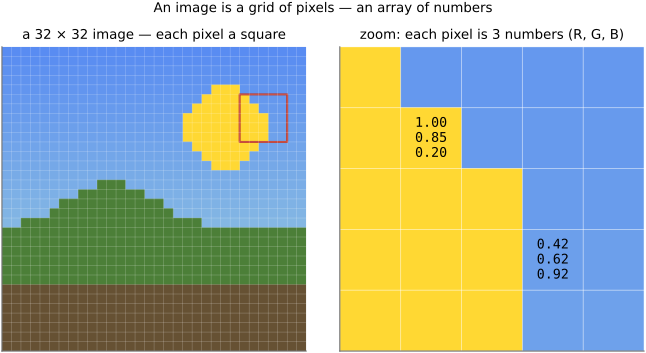
A pixel — short for picture element — is one cell of the grid, and an image is a rectangular array of them. Each pixel holds a short list of numbers describing its color, almost always three: how much red, how much green, how much blue (Figure 1).
It pays to say this a little more formally, because the framing will organize the whole book. An image is a function defined over a 2-D domain — the grid of integer positions $(x, y)$ — whose values live in a range, here the space of colors. We store that function as a three-dimensional array of size $\text{height} \times \text{width} \times \text{channels}$ and write $I(x, y, c)$ for the value at column $x$, row $y$, channel $c$. A grayscale image has a single channel, and we drop the index and write $I(x, y)$. The numbers are unremarkable: a 12-megapixel phone photo is a grid roughly 4000 pixels wide and 3000 tall, three values per pixel, about 36 million numbers in all — and not one of them is anything more than a fraction between zero and one.
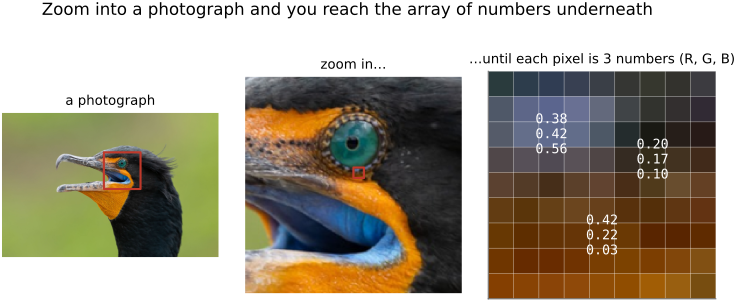
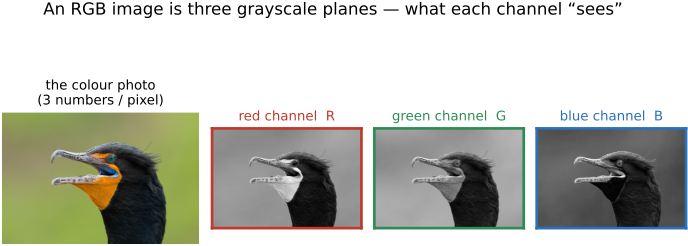
This is not a simplification that breaks down on real photographs — it is literally true of all of them. Keep zooming into any photo and you eventually hit the bare grid of values (Figure 1b). And the "three numbers" at a pixel are not welded into a single color object: they are three independent grayscale images stacked together, one per channel, each bright wherever its color is strong (Figure 1c). Pulling them apart and looking at one plane at a time is a habit worth building early, because most color processing is exactly that — operating on the channels.
Usually a pixel carries exactly three channels, but nothing forces that. Some images add a fourth — for transparency, which we return to under alpha below — and scientific hyperspectral images keep dozens or hundreds of narrow wavelength bands instead of three broad ones. One very practical trap follows from this freedom, and it bites beginners constantly: a Portable Network Graphics (PNG) file may carry an alpha channel, so a file you assume is three-channel RGB hands you four channels instead. If the rest of your code expects three, every pixel downstream is misread. The fix is trivial once you know to look — check the channel count on load — but the symptom (colors scrambled, code not crashing) is baffling if you do not.
That is the whole data structure: a rectangle of numbers, occasionally with an extra channel or two. The rest of this chapter walks through the choices hiding inside that innocent description.
3.1.2 Beyond the pixels: basic metadata and EXIF⧉
An image file holds more than the pixel array. Wrapped around it is metadata — data about the data. The most basic metadata describes the array itself: its pixel width and height, the channel count and bit depth, and bookkeeping fields like the file's name and path and its creation date. Some of this you can read straight off the array in memory; the rest the file format records in a header. You will reach for it constantly — width and height set every loop bound, and the channel count is exactly the "three or four?" question from the previous section.
Cameras write a far richer layer of capture metadata into a standardized block called the exchangeable image file format (EXIF). This is where you find the ISO (sensitivity setting), shutter speed, aperture, and focal length the photo was taken at, along with the lens model, a timestamp, often a Global Positioning System (GPS) location, an orientation flag recording which way the camera was held, and an embedded International Color Consortium (ICC) color profile. EXIF is genuinely useful: it is how a photo library sorts by date, plots shots on a map, or auto-rotates a sideways frame.
Treat EXIF as a hint, not a measurement — two things go wrong. First, coverage is incomplete and inconsistent: not every camera writes every field, and the exact set and formatting differ from maker to maker, so any code that reads EXIF has to tolerate missing and oddly-encoded values. Second, and more dangerous, some numbers are only approximate. The recorded ISO and shutter speed in particular are routinely rounded to tidy nominal labels and are not radiometrically correct — they will not let you reconstruct the true exposure, or compare two frames' light, to the precision the digits imply. Do not treat EXIF capture values as calibrated measurements.
A catalog of the fields you will encounter lives in the appendix → Common EXIF fields; the file-format side of metadata — where in the file it sits, and how (or whether) it survives an edit — is in File formats and compression.
A recurring wish in this book: beyond the basics above, a sane image representation would carry exactly the things a bare array can never imply on its own —
- the encoding (linear / gamma / log — the very ambiguity the encoding section below is about);
- the color space / primaries, ideally as an embedded ICC profile;
- the noise level — the read- and shot-noise parameters — so downstream code knows the per-pixel uncertainty it is working with;
- and, when it is known, the point spread function (PSF) — the blur the optics imposed — which is exactly what deblurring needs to undo it.
Most formats carry the first two only unreliably, and the last two not at all. Yet the algorithms that come later silently need this provenance: white balance and HDR want the encoding and color space, denoising wants the noise parameters (see edge-preserving filtering), deblurring wants the PSF. The honest view, then, is that an image is its pixels plus this provenance — and a representation that drops it is forcing every later stage to guess.
3.1.3 Float vs 8-bit vs more bits⧉
We do our work in floating-point values, and almost always treat the useful range as $[0, 1]$ — $0$ black, $1$ white. The reason is comfort: in float, an image behaves like ordinary numbers. You can add two of them, multiply by a constant, average a hundred, and nothing overflows or quietly truncates to an integer mid-computation. The 8-bit integers ($0$–$255$) you find on disk are excellent for storage and fast hardware, but doing arithmetic directly in 8 bits is a real pain — every intermediate result has to be clamped and rounded, headroom is tiny, and errors accumulate. We confront 8-bit arithmetic squarely in a later chapter; here we simply convert to float on load and back on save, and otherwise forget integers exist.
Between those extremes lies a whole ladder of more bits, and it matters in practice. Camera sensors typically deliver 12–14 bits per channel in their RAW files — four to six binary digits more tonal resolution than an 8-bit JPEG — and that extra headroom is exactly what lets you rescue crushed shadows or recover a clipped sky in editing. A great deal of real image processing then happens in 16 bits (16-bit integer, or 16-bit "half" float): enough precision that rounding stays invisible through a long chain of edits, at half the memory of 32-bit float. The rule of thumb is that capture and intermediate work want more bits than the 8 a final display needs — you keep precision where errors would otherwise accumulate, and only quantize down to 8 bits at the very last step, on output.
A float stores a number in binary scientific notation: sign × mantissa × 2^exponent. The exponent slides the binary point, so the same ~24 mantissa bits of a 32-bit float deliver the same relative precision whether the value is $0.001$ or $1000$. A few consequences matter for images:
- Precision is relative — fine near $0$, coarser for large values. That is a good match for linear radiance and high dynamic range (HDR) imaging, where you care about ratios, and roughly for how we perceive light (Weber's law).
- Values outside $[0, 1]$ are fine. A super-white highlight, or the negative lobe of a sharpening filter, is just a number; nothing clamps until you actually output to a display or an 8-bit file. This headroom is a genuine convenience — intermediate results can overshoot and come back.
- $0.1$ is not exact in binary, and adding numbers of very different magnitude loses the low bits (a long running sum of tiny values can drift). Usually negligible for images; occasionally not.
infandNaN(0/0,logof a negative,0 × inf) propagate and silently poison an image — one bad pixel can spread on the next blur. A classic bug; check for them when something goes mysteriously blank.float32is the working default.float16/ half halves memory (used in machine learning and some HDR pipelines) at the cost of precision;float64is rarely worth it for images.
💡 L6 — quantization is rarely the real problem (introduced in FUNDAMENTALS → Noise): with enough bits and a sane encoding it is noise and dynamic range that limit an image, not the number of discrete levels — which is exactly why floats with headroom are the sane default here.
3.1.4 What the numbers actually mean: encoding⧉
Take a pixel value of $0.5$. Is that half as much light as $1.0$? It is tempting to assume so, and it is often wrong. The answer depends entirely on the image's encoding, and this is the single most important caveat in the whole chapter: a bare array of numbers is meaningless until you know how it is encoded. That $0.5$ might mean half the physical light — a linear value, proportional to scene radiance — or it might mean the signal that drives a display to look middling, a gamma-encoded value corresponding to a quite different amount of physical light. The two readings of the identical array differ by a lot, and confusing them quietly accounts for a remarkable share of image-processing bugs.
The book introduced encoding earlier and gives it a full treatment in Linear vs Gamma vs. log encoding; here we only need to be clear about when things are encoded and when they are decoded, and about which space each operation assumes. The reason multiple encodings exist is that different parts of computational photography genuinely want different ones:
- Linear values are proportional to scene light. Anything physical wants them: merging exposures for HDR, white balance, radiometry, blurring and convolution, deblurring, denoising. In linear light a blur is an honest average of light, and doubling the exposure is a true multiply by two.
- Gamma values are what files and screens usually speak (sRGB's exponent is about $2.2$). They are also closer to perceptually uniform, which is sometimes exactly what an algorithm wants.
- Log is the right space when the dynamic range is enormous, because there, range compression becomes a simple subtraction — the workhorse move of tone mapping.
There is a further wrinkle worth naming: the values in a finished JPEG, or a scanned film frame, are usually not even a clean gamma encoding of scene light. The camera's processor (or the film's chemistry) has already applied tone curves, saturation boosts, and contrast S-curves to make the picture look good straight out of the camera — beautification, not measurement. So a consumer JPEG is roughly: scene light → camera "look" → gamma → 8-bit, with the physical meaning of the numbers scrambled along the way.
The practical upshot is a discipline and a corollary. The discipline: whenever we introduce an operation, we state plainly which encoding it assumes, and we say plainly when we encode and when we decode. The mistake is never picking a space — it is not knowing which one you are in. The corollary, worth absorbing now: starting from calibrated, linear, radiometric values (RAW, before all the cooking) gives you a principled way to edit — exposures that add up, colors that mix correctly — whereas the older, pre-digital approaches were necessarily more hand-wavy, because the numbers' meaning was never pinned down.
The numbers in an image array carry no meaning by themselves. The same triple (0.5, 0.2, 0.1) is a different colour — and a different amount of light — depending on two things the array does not contain:
- its color space — which primaries and white point those R, G, B refer to (sRGB? Adobe RGB? Display P3? a camera's native raw space?); and
- its value encoding — how a stored number maps to light (linear, gamma, log, or a camera "look" curve).
Strip those two away and you are left with a grid of anonymous numbers. Every operation that matters later — white balance, HDR merging, blur and deblur, any colour conversion — silently assumes a particular answer to both questions, and gets the wrong result if the assumption is wrong. Hence the discipline of the whole book: never touch a pixel without knowing its color space and its value encoding. When two "identical" images don't match, this is almost always why.
3.1.5 What the numbers actually mean: color spaces⧉
Those three letters, "RGB," hide more than they reveal. Several independent decisions all travel under the same name, which is why two arrays can both be honestly called "RGB" and still be incompatible. It is worth listing them once:
| what varies | examples | where it bites |
|---|---|---|
| channel order | RGB vs BGR (OpenCV) | red and blue swap silently |
| color space / primaries | sRGB vs Adobe RGB vs Display P3 | same numbers, different actual colors → Color technology |
| encoding | linear vs gamma | the section above |
| range | $[0, 1]$ float vs $[0, 255]$ uint8 vs 10/12-bit | scale factors, overflow |
| alpha convention | premultiplied vs straight | → Compositing |
A bare array announces none of this — the information lives in metadata (the file header, an embedded ICC color profile). The advice is correspondingly simple: read the metadata, don't assume. When two images that "should" match stubbornly don't, this table is the first place to look.
3.1.6 Three kinds of operation⧉
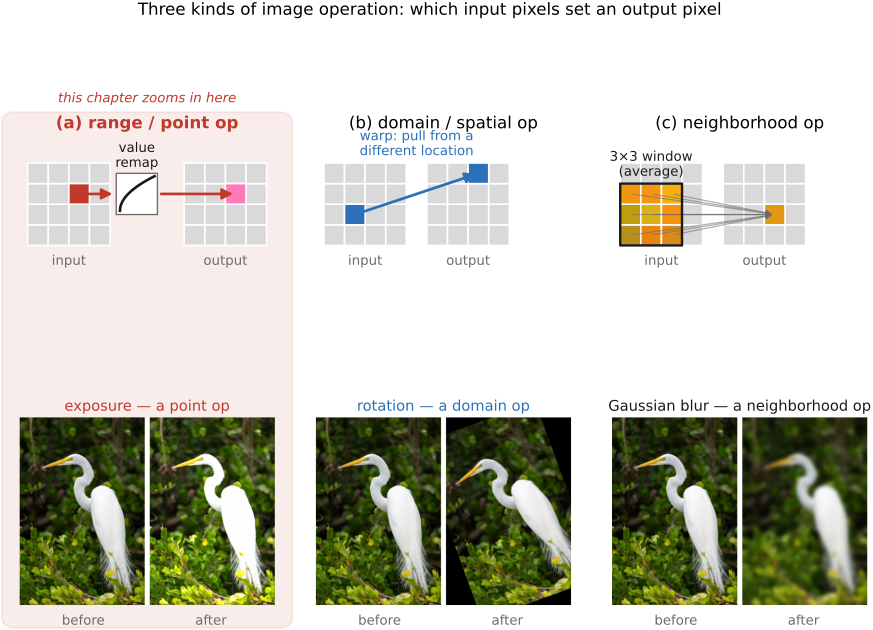
The domain/range split we just drew is not only a definition — it sorts everything we will do to an image into three families, and it is worth naming them now, because the next several chapters are each built around one (Figure 2):
- point operations touch the range only: a pixel's new value depends solely on its old value, the same rule applied everywhere (brightness, contrast, tone curves, gamma);
- domain operations move pixels around without changing their colors: each output pixel pulls its value from a different input location (translation, rotation, resizing, lens correction);
- neighborhood operations compute each pixel from a window of its neighbors (blur, sharpen, edge detection).
This is a preview; each family gets its own development later (point operations come first). But the taxonomy already earns its keep, because it predicts cost: a point operation reads each pixel once, while a neighborhood operation reads many input pixels per output pixel. We will flag which family every new tool belongs to as we go.
3.1.7 How the array sits in memory⧉
The array is two- or three-dimensional, but computer memory is one long line of numbered addresses. Something has to decide how the grid gets flattened into that line — and there is no single right answer. Different ecosystems made different choices, which matters the instant you pass an image between them.
Two decisions combine (Figure 3). The first is the order of the axes. Walking through memory pixel by pixel, do the three channels of one pixel sit side by side — red, green, blue, red, green, blue — or are all the reds stored first, then all the greens, then all the blues? The first is interleaved, or HWC (height, width, channel, with the channel varying fastest); the second is planar, or CHW (the channel varies slowest, each channel a single contiguous plane). NumPy's standard image layout is interleaved HWC; the C++ code in this book stores planar; and PyTorch, which we meet much later for machine learning, wants CHW because that is what its convolutions expect. Concretely, in a planar layout pixel $(x, y, c)$ lives at the flat offset $c\cdot W\cdot H + y\cdot W + x$; interleaved, it is at $(y\cdot W + x)\cdot C + c$. You rarely compute these by hand, but seeing them once makes the point that "the array" is really this index arithmetic — and that $W$, the row length, is the stride that converts a 2-D index into a 1-D one.
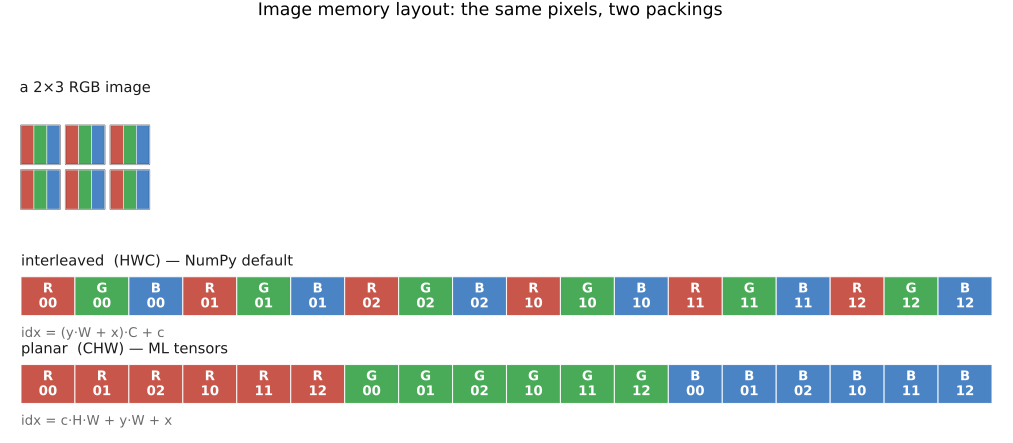
R G B R G B … row by row; pixel $(x, y, c)$ is at offset $(y\cdot W + x)\cdot C + c$. Planar (CHW): all of the red channel, then all of green, then all of blue — three contiguous planes; pixel $(x, y, c)$ is at offset $c\cdot W\cdot H + y\cdot W + x$. Same numbers, same picture; only the walk order through memory differs.The second decision is the order within a pixel. Most of the world, and this book, store the channels as red, green, blue (RGB) — but a few libraries, OpenCV being the notorious one, use BGR. Mix the two and red and blue swap silently: skies turn orange, skin turns blue, and nothing throws an error. So always know which order your data is in.
Why care about any of this for everyday code? Mostly you should not — the mental model is just "a grid of pixels," and the accessor we build below hides the packing entirely. Two situations force you to think about it: performance (a loop that strides through memory in contiguous order runs far faster than one that hops around, so the right layout for an algorithm matters when speed does), and interoperability (handing an image to a library that expects a different layout means rearranging the array first). Outside those, the packing is an implementation detail.
That performance point dictates how you write every loop, so it is worth one more sentence. Memory is fast only when you read it in order: the hardware fetches a whole cache line at a time and prefetches the next, and vector (SIMD) instructions chew through a contiguous run of values in a single step. Both reward walking the array along the direction it is actually stored. For a row-major image the pixels of one row are contiguous, so the loop must put the row index $y$ on the outside and the column index $x$ on the inside — for y: for x: marches straight through memory, cache line after cache line, and vectorizes cleanly. Swap them — for x: for y: — and every step jumps a full row's stride ($W$ values, often several kilobytes) to a fresh, uncached address; the cache thrashes and the identical arithmetic can run several times slower. (Planar layout just extends the rule to three nested loops, channel outermost: for c: for y: for x:.) This is why the data is organized the way it is — not aesthetics, but matching the array's order to how memory and SIMD actually behave — and "is my loop nesting in stride order?" is the first thing to check when an image loop is mysteriously slow.
This book carries a concrete, working C++ image data structure, and it is worth seeing once so the planar arithmetic above stops being abstract. It is deliberately minimal — three integers for the shape, and a single flat buffer of floats in planar order:
struct Image {
    int width, height, channels;
    std::vector<float> data;        // planar: c*width*height + y*width + x

    Image(int w, int h, int c)
        : width(w), height(h), channels(c),
          data(static_cast<size_t>(w) * h * c, 0.0f) {}

    // The accessor: hides the index arithmetic, so the rest of the
    // code can think in plain (x, y, c).
    float& operator()(int x, int y, int c) {
        return data[c * width * height + y * width + x];
    }
};
The entire image is one std::vector<float>; pixel $(x, y, c)$ lives at data[cwidthheight + y*width + x] — exactly the planar offset from Figure 3. The operator() accessor buries that formula in one place, so a line like img(x, y, 0) = 1.0f reads as if it indexed a 3-D array even though the storage underneath is flat and planar. (The Python profile of this book uses a NumPy $H \times W \times C$ array instead, indexed arr[y, x, c], which is interleaved HWC — the same image, a different default packing.) We extend this same accessor below to handle out-of-bounds reads, turning it into the single chokepoint through which all pixel access flows.
We store pixel values as floating-point numbers, with $0$ the darkest a channel can be and $1$ the brightest. This keeps the arithmetic honest: adding two images, scaling by a half, or averaging a stack all behave like ordinary numbers, with no overflow or integer rounding to track. Files on disk usually store 8-bit integers ($0$–$255$) for size and speed, and we convert when we load and save. The next section says more about why floats are the right working type — and why values are even allowed to stray outside $[0, 1]$.
3.1.8 Pixel coordinate conventions⧉
Before we trust ourselves to index an image, two small geometric conventions have to be nailed down, because both are silent traps and both differ between tools.
The first is where the origin sits. We place $(0, 0)$ at the top-left pixel, with $x$ increasing to the right and $y$ increasing downward — the order in which image data is scanned and stored, and the convention most imaging code (and our own camera frame) uses (Conventions, Notation & Style#Geometry & coordinate systems). The catch: a few systems — classic OpenGL textures, and much plotting and math software — put the origin at the bottom-left, with $y$ increasing upward, as on a graph. Hand an image from one world to the other without flipping it and the picture comes out upside down. Nothing crashes; it merely looks wrong, which is the worst kind of bug to chase.
The second convention is subtler and matters more: what an integer coordinate names. A pixel is not a point — it is a little square with area. So does the coordinate $(3, 5)$ refer to the pixel's center or to one of its corners? We adopt the standard choice: integer coordinates name pixel centers. Pixel $(0, 0)$ is centered at $(0, 0)$, so its square spans $x \in [-0.5, 0.5)$, and the continuous image covers $x \in [-0.5,\, W - 0.5)$. The competing convention — integer coordinates at the top-left corner of each pixel, so the image spans $[0, W)$ — is also in wide use, and the two differ by exactly half a pixel.
That half-pixel sounds pedantic, and for a point operation it is — a curve applied to every pixel never asks where a pixel is. But the moment you resample or warp — scale up, rotate, correct lens distortion — you are evaluating the image at non-integer positions, and a consistent half-pixel error shifts the whole result by half a pixel, blurs it, or makes a "round trip" (shrink then enlarge) fail to land back where it started. It is one of the most common bugs in resampling code precisely because it never raises an error. We fix the convention now — integer = center — and return to it in full at resampling and warping, where it earns its own discussion of "where-from vs. where-to" addressing.
Keep two facts straight and most coordinate bugs evaporate: the origin is top-left, $y$ down, and an integer coordinate names a pixel's center, not its corner. Both are conventions, not laws — other tools choose differently, so check before you trust.
3.1.9 Alpha and extra channels⧉
So far each pixel has held three numbers, but nothing requires exactly three. The common fourth channel is alpha: a per-pixel opacity (or coverage) value, giving RGBA — how much of this pixel is genuinely "there" versus see-through. Alpha carries one classic pitfall, premultiplied vs straight (whether the RGB values have already been scaled by the alpha), but we do not need it until the compositing chapter Compositing, which treats it in full. The heads-up for now is the narrow, very common one from the array section: load a PNG expecting three channels and you may get four — so check the channel count on load.
Beyond alpha, the array simply gains channels as the task demands. A depth (or Z) channel records distance per pixel; a matte marks out a region; hyperspectral imaging keeps many narrow wavelength bands instead of three broad ones (recall from the light chapter that "color," upstream of the camera, is really a full spectrum — hyperspectral keeps more of it). None of the machinery changes; there are just more numbers per pixel.
3.1.10 Video and more dimensions⧉
Nothing forces us to stop at a flat grid, either. A video is just an image sequence with one extra axis, time: $H \times W \times C \times T$. Most operations we write for a single frame generalize directly — run them frame by frame — and only the operations that couple frames (motion estimation, temporal denoising) need anything new, which we save for the motion and video material.
The same move keeps paying off in other directions. Volumetric imaging stacks 2-D slices into a 3-D block — medical computed tomography (CT) and magnetic resonance imaging (MRI) produce an $H \times W \times D$ volume. A light field adds two angular axes to the two spatial ones (a 4-D record of rays, not just pixels); a spectral cube adds wavelength. In every case it is the same array machinery with more axes. We write this book for 2-D images and point out where adding a dimension is all it takes.
3.1.11 Reading a pixel — and falling off the edge⧉
Almost every operation in the coming chapters reaches for a pixel's neighbors, which forces an unavoidable question: what is $I(x, y)$ when $(x, y)$ lands outside the image? We cannot dodge it, because blurs, gradients, resampling, and warps all ask for out-of-bounds pixels right at the border, where there are no neighbors on one side. Reading past the array is, at best, garbage and, at worst, a crash — so the first discipline is defensive: route every pixel read through a single accessor function, a small get(x, y, c), so that out-of-bounds access is decided in exactly one place rather than re-improvised (and re-broken) in every loop. As a bonus, that one function is also where the memory layout, the channel order, and the coordinate convention live — so the rest of the code can think in plain $(x, y, c)$ and forget every packing decision above. It is the natural home for one more safety check, too: asserting that an index lies in $[0, \text{size})$ inside that single function turns a baffling, far-away crash into an immediate, localized error (we develop this habit in the debugging chapter).
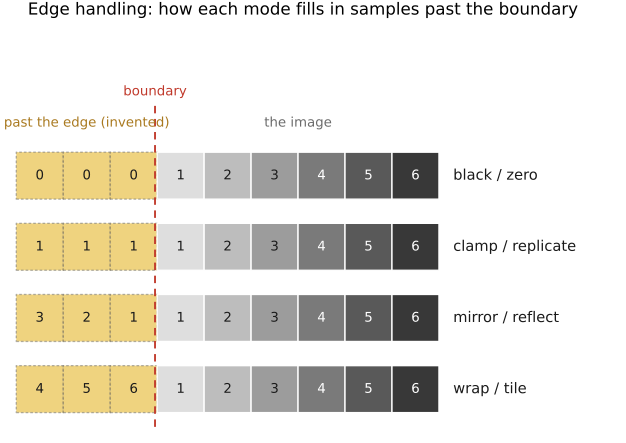
The accessor then has to decide what a pixel past the boundary means. There are four standard policies (Figure 4):
- black / zero — treat everything outside as $0$. Simple, but it darkens edges, since you are averaging in black that is not really there.
- clamp / replicate — repeat the nearest edge pixel outward. A reasonable, neutral default for many operations.
- mirror / reflect — fold the image back across its boundary, so the neighborhood just past the edge mirrors the one just inside. This avoids both the artificial darkening of zero and the streaking of clamp, and is the usual safe default for filtering.
- wrap / tile — treat the image as periodic, the left edge adjacent to the right. Rarely what you want visually, but it is exactly the assumption the Fourier transform makes, so it returns when we get there.
On a real photograph the four policies look like Figure 4b: the same crop, continued past its border each way — surrounded by a dark frame, streaked outward, folded back on itself, or wrapped around from the opposite edge.
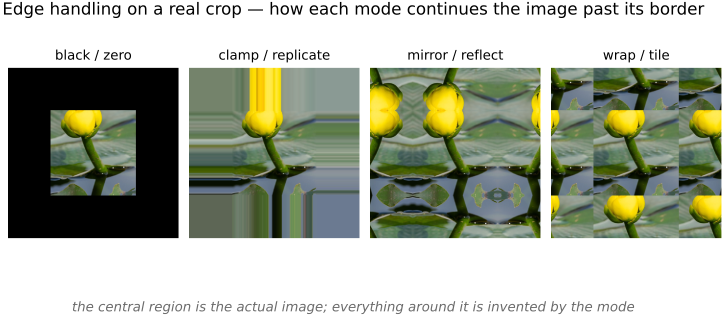
The choice is not cosmetic: it changes what a convolution, a resample, or a warp produces along every border, and a surprising number of "why is there a dark frame / a bright streak around my result?" bugs trace straight back to it. We default to mirror as the safe general choice, fall back to clamp when we want simplicity, and call out wrap wherever Fourier makes it the natural one. With the accessor and its edge policy fixed, the bare grid of numbers we opened with is finally a structure we can compute on — which is exactly what the next chapters do.
Big lessons of this chapter
The recurring principles from this chapter, gathered for review.
The numbers in an image array carry no meaning by themselves. The same triple (0.5, 0.2, 0.1) is a different colour — and a different amount of light — depending on two things the array does not contain:
- its color space — which primaries and white point those R, G, B refer to (sRGB? Adobe RGB? Display P3? a camera's native raw space?); and
- its value encoding — how a stored number maps to light (linear, gamma, log, or a camera "look" curve).
Strip those two away and you are left with a grid of anonymous numbers. Every operation that matters later — white balance, HDR merging, blur and deblur, any colour conversion — silently assumes a particular answer to both questions, and gets the wrong result if the assumption is wrong. Hence the discipline of the whole book: never touch a pixel without knowing its color space and its value encoding. When two "identical" images don't match, this is almost always why.