1.3 Basic intro to digital images⧉
Before we get to the physics and perception of the FUNDAMENTALS part, we need just enough machinery to be concrete and to run a few small experiments. This chapter gives you that — the bare minimum to make and manipulate an image in code — and defers everything subtle to later.
1.3.1 The data structure is gloriously simple⧉
Here is the good news: a digital image is one of the simplest data structures you will ever meet. It is a grid of numbers. That's it. You can hold the whole thing in your head, print it out, poke at individual values, and watch what happens. Most of the cleverness in this book is in what we compute from that grid, not in the grid itself.
Of course, the details can matter, and some of them are genuinely subtle — how the numbers map to brightness, what color even means, how the values are encoded and packed. We will worry about all of that in later chapters. In this one we give the basics and nothing more, so that you can start playing immediately.
1.3.2 An image as a function over the plane⧉
The cleanest way to think about an image is as a function. Pick a point on the image plane and the function tells you how bright the image is there. For a grayscale image we write $I(x, y)$: feed it a horizontal position $x$ and a vertical position $y$, and it returns a single value, the intensity at that point. For a color image the function returns a few numbers at once — typically red, green, and blue — so we add a channel index $c$ and write $I(x, y, c)$.
One convention to fix now, because it trips up everyone at first: the $y$ axis increases downward. The origin $(0, 0)$ sits at the top-left corner, $x$ grows to the right as you'd expect, but $y$ grows as you move down the image. This is not how you drew graphs in calculus, where $y$ went up. It is, however, how screens and image files store their rows — top row first, then the next row down — so the imaging world adopted it and we will too. If a result ever comes out upside down, this sign is the usual culprit.
Thinking of an image as a function $I(x, y)$ is a useful idealization: it lets us talk about the image at any point of the plane, as if it were a smooth surface of brightness. That continuous picture is exactly what we want when we get to optics, sampling, and filtering later. But a computer cannot store a value at every one of infinitely many points, so in practice we evaluate the function only on a grid.
1.3.3 An image as a discrete array⧉
In code, an image is a discrete array: a finite grid of cells, each cell a pixel (for "picture element"), each pixel holding a few numbers. A tiny image is literally that — a small grid of little squares, each square a uniform patch of color, each color just a triple of numbers $(R, G, B)$. Zoom in far enough on any digital image and this is what you find: not a smooth surface, but a mosaic of constant-colored squares with hard numbers behind them.
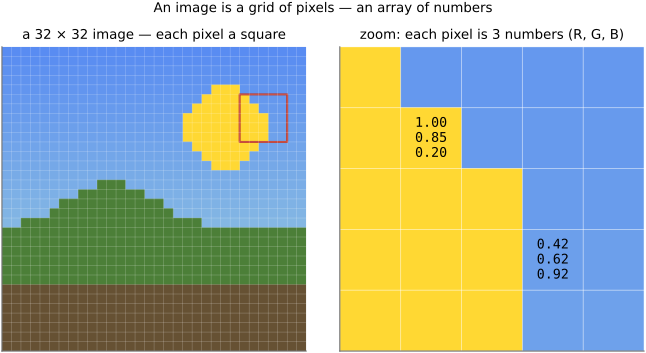
We index the array with two integers, a row and a column. Following the function $I(x, y, c)$, the pixel at column $x$, row $y$, channel $c$ is the array entry $I[y, x, c]$. Notice the swap: the function lists $x$ (horizontal) first, but the array lists $y$ (the row) first, because we store the image row by row. This row-first ordering is the standard one in array libraries, and matching it now will save you a lot of transposed, sideways images later.
A grayscale image needs only $I[y, x]$ — one number per pixel, no channel axis. A color image carries three channels, so its shape is height × width × 3. Width and height we call $W$ and $H$; a $W = 1920$, $H = 1080$ color image is therefore an array of shape $(1080, 1920, 3)$ — rows first.
1.3.4 How the array sits in memory, briefly⧉
Conceptually the array is two- or three-dimensional, but the machine stores it as a single one-dimensional block of numbers laid end to end. Something has to decide the order — which index runs fastest as you walk through that block. That choice is the memory layout, and there is more than one convention.
The default in NumPy is interleaved, often called height-width-channels (HWC): you store pixel $(0,0)$'s red, green, and blue together, then move to the next pixel. You address a pixel simply as img[y, x, c] and let the library work out the offset. The other common convention is planar, channels-height-width (CHW): all the red values first, then all the green, then all the blue — the layout deep-learning frameworks tend to prefer. Our C++ edition uses a planar layout and computes the flat offset of a pixel by hand as
Read that right to left: $x$ steps one element along a row, $y \cdot W$ jumps down whole rows, and $c \cdot W \cdot H$ jumps to the start of the next channel's plane.
That is genuinely all you need for now — just enough to find a pixel and read or write it. The layout choice has real consequences for cache behaviour and performance, and we treat it properly in Image representation. Here, keep it light.
1.3.5 Floats in [0, 1], for now⧉
For these first experiments we represent each channel value as a floating-point number in the range $[0, 1]$. The rule is as simple as it sounds: bigger number = brighter. A value of $0$ is black, $1$ is full intensity, and $0.5$ is somewhere in the middle. A color pixel is a triple, one value per primary — red, green, blue — so $(1, 0, 0)$ is pure red, $(1, 1, 1)$ is white, and $(0, 0, 0)$ is black.
Why floats in $[0, 1]$ rather than the integers $0$–$255$ you may have seen? Because the arithmetic stays clean. Adding two images, scaling by a half, blending — all of it reads like ordinary math, with no worrying about overflow or integer rounding mid-computation. We will convert to and from 8-bit integers only at the edges, when we load or save a file.
One honest caveat. "Bigger number = brighter" is the working intuition for this chapter, and it is good enough to experiment with. But the exact relationship between the stored number and the light your screen emits — gamma, and encoding more generally — is not quite linear, and it matters a great deal for serious work. We defer that entirely to Light and physics and Image representation. For now: bigger number, brighter pixel.
1.3.6 Generating images from scratch⧉
The fastest way to get comfortable is to make images, not load them. Since an image is just an array, you can fill it with whatever function of position you like. Start with the simplest cases and build up:
- a constant color — set every pixel to the same triple; you get a flat field;
- a vertical gradient — let the value rise from $0$ at the top to $1$ at the bottom, i.e. $I[y, x] = y / (H - 1)$, and you get a smooth black-to-white ramp;
- a Dirac (a single bright pixel on a black background) — one pixel set to $1$, all others $0$; this innocent-looking image becomes important once we get to filtering;
- a box — a bright rectangle on a dark field;
- a sine wave — $I[y, x] = \tfrac{1}{2}\bigl(1 + \sin(2\pi f x / W)\bigr)$ for some frequency $f$, giving smooth stripes that will reappear the moment we talk about frequencies.
Now a couple of finger exercises. Try this: a checkerboard. Make an image that alternates black and white in squares of size $s$. The trick is integer division: a pixel is white when $(\lfloor x/s \rfloor + \lfloor y/s \rfloor)$ is even, black when it's odd. Try this: a line. Draw a one-pixel-wide diagonal across a black image — set $I[y, x] = 1$ wherever $y$ equals $x$ (or, more generally, wherever $|y - m x - b|$ is below half a pixel for slope $m$ and intercept $b$).
And if you want something more ambitious, the image is your canvas for any 2-D function. Try this: render a Mandelbrot set — color each pixel by how quickly the iteration $z \mapsto z^2 + p$ escapes, treating the pixel's coordinates as the complex number $p$ — or a Sierpiński triangle, where a pixel is on when the bitwise AND of its $x$ and $y$ integer coordinates is zero. Both are just "compute a number from $(x, y)$, store it in the array," which is the entire game.
1.3.7 Basic point operations⧉
A point operation changes each pixel based only on its own value, independent of its neighbours. These are the simplest possible image processing operations: you walk over the array and replace each value $v$ with some function $f(v)$.
The most basic ones are arithmetic. Adding a constant $I + b$ shifts every value up or down and reads as a brightness offset. Multiplying by a scalar $a \cdot I$ scales the values, which brightens (for $a > 1$) or darkens (for $a < 1$) the image more naturally than a flat add. After either one some values may stray outside $[0, 1]$, so you typically clip them back into range.
Linear operations can only do so much, though. To change contrast in a more interesting way we reach for a non-linear curve — a function that maps input value to output value, applied to every pixel. A curve that pushes mid-tones apart while compressing the shadows and highlights raises perceived contrast; the opposite flattens it. A gamma-like power curve $v \mapsto v^{\gamma}$ is the classic example: $\gamma < 1$ lifts the shadows, $\gamma > 1$ deepens them. (What makes a curve good is a real question — it ties into perception and tone mapping — and we take it up properly later.)
A clean way to implement an arbitrary curve is a look-up table (LUT): precompute $f(v)$ for each possible input value once, then map every pixel through the table. It's a small idea that turns up everywhere in real image pipelines.
Time for the most satisfying exercises in the chapter, all pure point operations:
- Try this: convert to black and white. Collapse the three channels to one grayscale value per pixel. A simple average $(R + G + B)/3$ works as a first cut.
- Try this: the negative. Replace each value $v$ with $1 - v$. White becomes black, and the result looks exactly like old film negatives.
- Try this: a fake-color scheme. Map a grayscale value through a color curve — low values to blue, high values to red, say — to get a false-color image. This is how heat maps and depth visualizations are built.
- Try this: sepia. Give the image a warm, old-photograph tint by boosting the red and green channels relative to blue. A few lines, and a fresh photo looks a century old.
1.3.8 Domain operations⧉
Where a point operation changes a pixel's value, a domain operation moves the pixel — it transforms the coordinates rather than the colors. The image content is preserved; it just lands somewhere else on the grid. The simple cases:
- translation — shift everything by a fixed offset $(\Delta x, \Delta y)$;
- mirror — flip left-to-right (replace column $x$ with $W - 1 - x$) or top-to-bottom;
- rotate by 180° — flip both axes at once;
- rotate by 90° — swap the roles of rows and columns. Because width and height trade places, a non-square image changes shape, and some output pixels can land outside the original grid.
That last point raises edge effects, which we will meet again and again. When a domain operation asks for a source pixel that doesn't exist — off the edge of the input — you have to decide what to return. For now, the simplest policy: return black. Later we'll see smarter choices (clamp to the nearest edge, wrap around, mirror).
There is one implementation habit worth forming right now, even though it doesn't yet matter for correctness. Loop over the output, not the input. For every pixel of the result, ask "where in the source does this value come from?", fetch it, and write it. The naive alternative — loop over the input and scatter each pixel to where it should go — leaves holes and overlaps the moment the transformation isn't a simple integer shift. It makes no visible difference for a 90° rotation, but the output-driven habit is exactly what makes resampling, warping, and interpolation work cleanly later. Form it now while the examples are easy.
1.3.9 Neighborhood operations⧉
The next step up: a neighbourhood operation computes each output pixel from a small region of input pixels around the corresponding location, not just the single pixel underneath. This is where images start doing things a flat array of independent numbers cannot.
The workhorse example is blur. Replace each pixel with the average of itself and its neighbours — a $3 \times 3$ average, say — and the image softens. Larger neighbourhoods blur more. Averaging is the gentlest possible neighbourhood operation, and it is the seed of the whole theory of convolution and filtering that the BASIC IMAGE PROCESSING part is built on.
Two exercises that go the other direction — emphasizing differences instead of smoothing them:
- Try this: a centre-surround operation. Subtract the local average (the surround) from each pixel (the centre). Flat regions cancel to gray, while edges and fine detail pop out. This simple difference is, not coincidentally, close to how the early visual system processes light.
- Try this: a finite-difference gradient. Approximate the horizontal derivative by subtracting each pixel from its right neighbour, $I[y, x+1] - I[y, x]$, and the vertical derivative similarly. The result is large where the image changes quickly — at edges — and near zero where it's smooth. You have just built an edge detector out of subtraction.
Neighbourhood operations also need an edge policy: near the border, some of the neighbours fall off the grid. The same options apply, and the same provisional choice — treat the missing neighbours as black — will do for now.
1.3.10 Two-image operations⧉
So far one image in, one image out. Just as natural are operations that combine two images of the same size, pixel by pixel:
- add — $I_1 + I_2$, pixel-wise; useful for combining exposures or layering content (clip the result back into range);
- subtract — $I_1 - I_2$, which highlights what changed between two images; shoot a scene twice and the difference reveals exactly what moved.
Scaling and multiplying open up a bit more. Multiplying two images pixel-wise lets one image modulate another. If the second image is a smooth top-to-bottom ramp, multiplication darkens one side and leaves the other untouched — a digital graduated neutral-density filter, the photographer's tool for taming a bright sky over a dark foreground. And if the second image is a mask — $1$ where you want the foreground, $0$ where you want the background — then $\text{mask} \cdot I_{\text{fg}} + (1 - \text{mask}) \cdot I_{\text{bg}}$ pastes one image into another. That blend is compositing, and it is the foundation of every cut-out, green-screen, and montage you have ever seen.
1.3.11 A little fun to finish⧉
To close, three toys that are pure applications of everything above, and genuinely fun to run.
A Photo Booth effect. Apple's Photo Booth app is mostly point and domain operations dressed up: the negative and sepia you already wrote, plus mirrors and stretches. Combine a few and you have your own live filter rack.
A half-mirror. Take the left half of an image and reflect it onto the right half (or top onto bottom) — a one-line domain operation that makes any face eerily, perfectly symmetric. Try it on a portrait; real faces are never quite symmetric, and the result is uncanny.
Averaging faces. Add several portraits together and divide by their count — a two-image operation, repeated — and the average emerges as a strangely smooth, almost idealized face. The catch is alignment: the eyes and mouth have to land in the same place, or you get mush. Start with pre-aligned images, or one of the standard celebrity face datasets where alignment is already done, and watch a crowd dissolve into a single composite face. It is a small thing, built from nothing but adding arrays and dividing by a scalar — and a good note to end on, because it shows how far the gloriously simple grid of numbers will take you.